
Smart Lock Cybersecurity in India (2026): Your Account Is Now Your Front Door
A Wi-Fi or app-controlled lock is a small computer on your home network, and its online account is your door. This guide is how to harden your own lock: strong unique password, two-factor, updates, safe Wi-Fi and a non-networked backup.
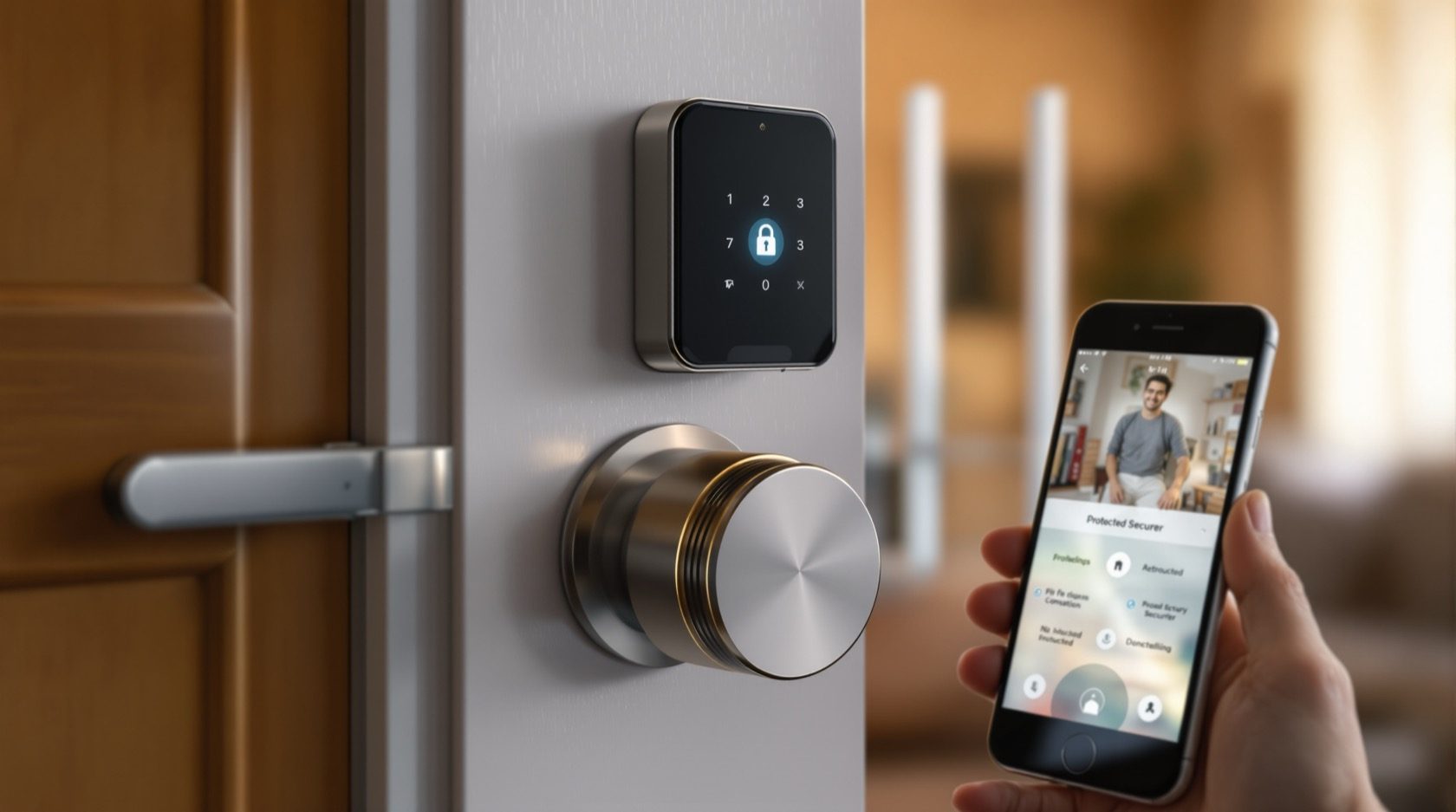
The day you fit a Wi-Fi or app-controlled lock, your front door quietly stops being only a mechanical thing. It becomes a small computer sitting on your home network, tied to an online account, talking to an app and often to a maker's cloud server. That is genuinely useful — you can let a guest in from work, see who came and went, hand a cleaner a time-limited PIN. It also means a new, unfamiliar truth: your lock's account is now part of your front-door security. A weak account is a weak door, no matter how solid the bolt.
Smart lock cybersecurity is the plain, defensive habit of hardening your own lock so that convenience never becomes exposure. This guide is strictly about protecting what you own — a checklist any homeowner can follow — and it deliberately says nothing about attacking or defeating any lock. It sits alongside the complete smart locks guide and the privacy guide in Studio Matrx's smart locks and access control hub, and it shares its whole discipline with keeping a camera system safe — see CCTV remote-access security.
Scope & safety. This guide helps you harden the account, app and network around a lock you own. It never explains how to bypass, pick or attack any lock, reader or account — weaknesses appear only as buying cautions and things to fix. A networked lock must never trap anyone: keep a mechanical key override and a working PIN so a cyber or network problem can never lock you out, and any fire-egress door stays a licensed job — see fire-egress compatibility. App-account, log and location data is sensitive personal data under the Digital Personal Data Protection Act, 2023. This is educational guidance, not legal advice.
Why a networked lock is a computer on your network
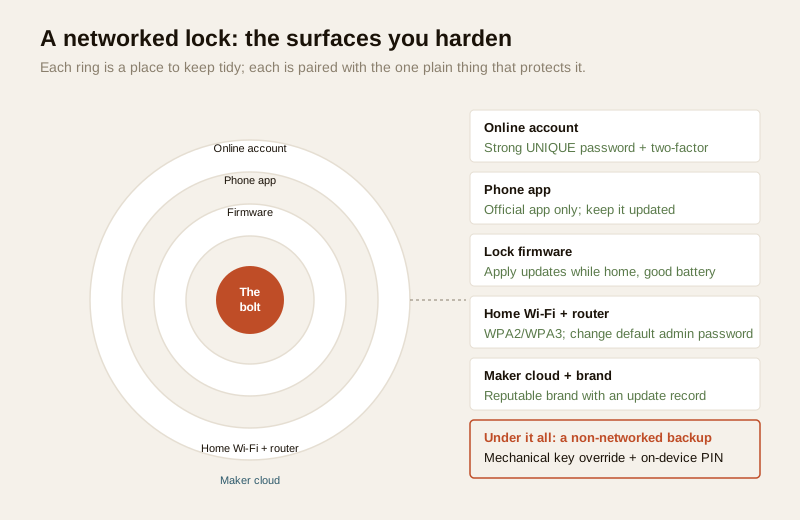
A purely mechanical lock has one attack surface: the physical cylinder in the door. A networked smart lock adds several more that live entirely online — the app on your phone, the account those credentials protect, the firmware running inside the lock, the home Wi-Fi it rides on, and (for cloud locks) a server you never see. None of these is a reason to avoid a good smart lock. They are simply new things to keep tidy, exactly the way you keep the mechanical cylinder in good order.
The honest framing is this: for a well-made lock from a reputable brand, the weakest link is almost never some exotic flaw in the bolt. It is a reused or guessable password, an account with no second factor, a phone or router that never gets updated, or an unknown-brand cloud lock whose maker has quietly stopped shipping security fixes. Every one of those is something you control. That is the good news — cyber hygiene for a lock is a short list of ordinary habits, not a specialist skill.
The account: a weak account is a weak door
If you do only one thing from this guide, make it the account. For an app-controlled lock or any Wi-Fi lock with remote access, whoever signs into the account can, in effect, open the door — so the account deserves the same care as a physical key.
- Use a strong, unique password. Unique is the word that matters. A long passphrase used only for this lock account means a leak on some unrelated shopping site can never hand a stranger your door. A password manager makes this painless.
- Turn on two-factor authentication (2FA). With 2FA, even a correct password is not enough — a second code (from an app or SMS) is needed too. On a door account this is not optional hygiene; it is the single biggest upgrade you can make. If the lock or app offers it, switch it on today.
- Do not share the master account. Add family members as their own named users with their own logins rather than passing one password around. That way you can remove one person without changing everyone's access.
- Review who has access, and remove ex-users. Every few months, open the app's user or access list and read it. A departed tenant, an old cleaner, a guest whose visit ended — each should be revoked. This is the digital equivalent of taking a key back, and it ties directly into emergency access planning and, for shared buildings, access-control audit trails.
| Account habit | Why it protects the door | How often |
|---|---|---|
| Strong, unique password | A leak elsewhere can never reach your lock account | Set once; change if a breach is reported |
| Two-factor authentication | A stolen password alone cannot sign in | Turn on now; keep on |
| Named users, not a shared login | Remove one person without disrupting all | At every add/remove |
| Review the access list | Catches leftover ex-users and stale guests | Every 2–3 months |
| Revoke on departure | The digital "take the key back" | The day someone leaves |
Keep the software current: firmware and app
A smart lock and its app are software, and software gets security fixes. An un-updated device is the online equivalent of a door left on the latch.
- Firmware updates patch security flaws inside the lock itself. Let the app apply them (or enable auto-update), but do it when you are home and the battery is healthy — a mid-update power loss on a device is best avoided. If you also own smart cameras, this is the same annual habit described in the CCTV remote-access security guide.
- App updates on your phone matter just as much; keep the lock's app, and your phone's operating system, current.
- App longevity is a real India concern. A cheap lock whose maker abandons its app leaves you stranded — no more security fixes, and one day a phone-OS update may break the app entirely. Buying a brand that still ships updates for older models is itself a security decision, covered in the buying guide.
Secure the network the lock rides on
A Wi-Fi lock is only as private as the home network carrying it. Two quick fixes cover most of the risk:
- Use WPA2 or WPA3 encryption on your home Wi-Fi, never an open or outdated-security network.
- Change the router's default admin password. Routers ship with well-known factory passwords; leaving the default is the classic gap. While you are in the settings, keep the router's own firmware updated too — the whole system, lock included, reaches the internet through it.
- Consider a separate guest or IoT network for smart-home gadgets if your router supports it, so a compromised cheap device cannot see the rest of your home. This is a nice-to-have, not a must.
These are the same fundamentals that protect every connected device in the home; the smart security systems guide and the wider home-security guide treat the network as the shared backbone it is.
Buy a reputable brand — and be wary of what you cannot verify
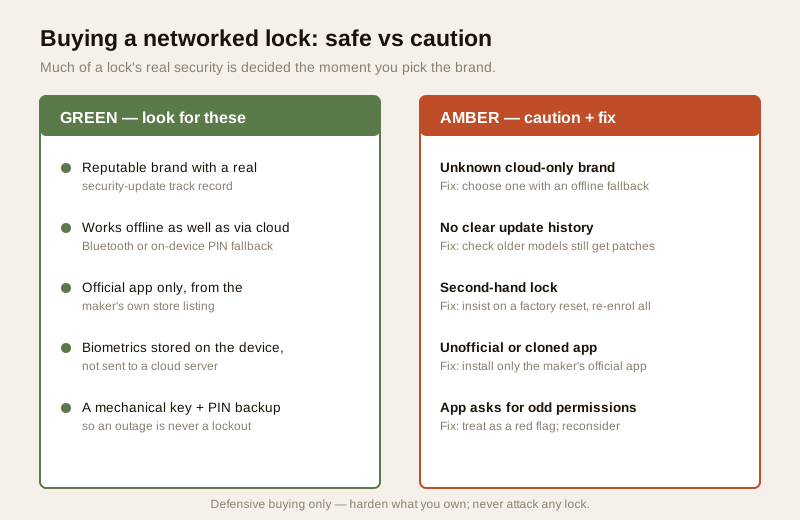
Much of a lock's real-world security is decided before you install it, at the moment you choose the brand. A reputable maker with a genuine security-update track record is doing quiet work on your behalf for years; an unknown white-label lock may have shipped once and never been patched.
- Prefer a brand with a real security-update history. Ask (or check reviews for) whether older models still receive firmware updates, and whether there is a clear way to report a security concern. See the buying guide and best smart lock brands framing.
- Be cautious with unknown-brand, cloud-only locks. A lock that only works through an obscure maker's cloud, with no offline fallback, ties your door to a company you cannot vet and a server you cannot see. If that company folds or the app is abandoned, you are exposed. Favour locks that also work offline (local Bluetooth, on-device PIN) so a cloud outage never becomes a lockout — see Bluetooth locks and PIN-code locks.
- Be wary of second-hand locks. A used lock may hold a previous owner's enrolled fingerprints, PINs or account links, and you cannot always be sure it was cleanly reset — or that its firmware is current. If you must buy used, insist on a full factory reset in front of you and re-enrol everything from scratch; a fingerprint lock especially should carry none of the old owner's biometric data.
- Only ever install the official app. Download the maker's app from the official store listing, never an unofficial "cloned" or side-loaded copy — a fake app is a straight route to your door account. If an app asks for permissions that make no sense for a lock, treat that as a red flag.
Understand what data the lock sends, and where
Part of cyber hygiene is simply knowing what leaves your home. A cloud-connected lock can send access logs (who unlocked, when), user lists, and sometimes phone-location or geofence data to the maker's servers. Under the Digital Personal Data Protection Act, 2023, access logs and any biometric or location data are sensitive personal data — so you have every reason to keep them minimal and well-guarded.
- Read the privacy summary before buying: what the lock collects, where it stores it, and whether biometric templates stay on the device rather than in the cloud. On-device is safer; the privacy guide goes into this in depth.
- Prefer locks that keep biometrics on the device. A fingerprint or face-recognition template should live in the lock's secure chip, not travel to a server.
- Minimise and delete. Do not collect more than you need, keep logs only as long as useful, and delete a departed user's data — the same discipline covered in the privacy guide.
| Data a networked lock may send | Sensitivity | What to prefer |
|---|---|---|
| Account credentials | High | Strong unique password + 2FA; never reused |
| Access logs (who/when) | High (DPDP) | On-device or short retention; restrict who can view |
| User list / shared PINs | Medium–High | Named users; revoke on departure |
| Biometric templates | High (DPDP) | Stored on the device, not the cloud |
| Phone location / geofence | High (DPDP) | Turn off geofence if you do not use it |
Always keep a non-networked backup
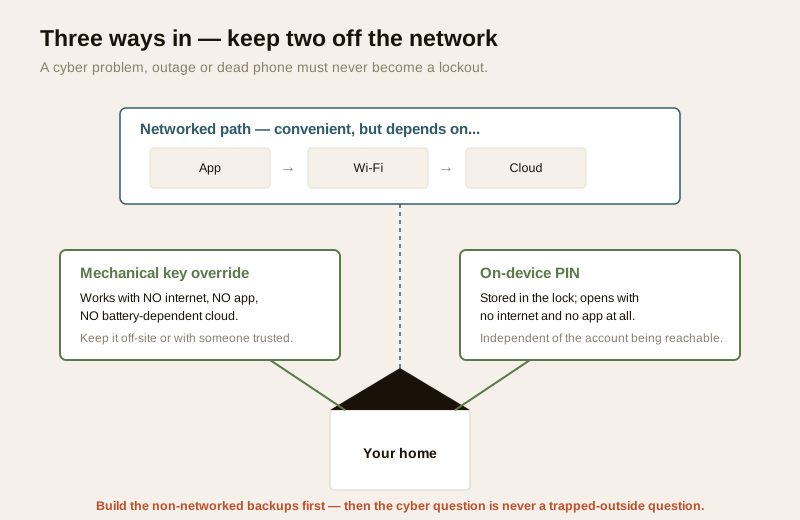
This is the safety net that makes all the rest safe to rely on. A cyber problem, a cloud outage, a forgotten password, a flat battery or a dead phone must never be able to lock you out of your own home. So keep at least one path in that does not touch the network at all:
- A mechanical key override, kept somewhere sensible off-site or with someone you trust — see the mechanical key override guide.
- A stored on-device PIN that works with no internet and no app, as PIN-code locks provide.
- Healthy batteries and a plan for the flat-battery case, from the battery guide and power and battery planning.
The whole point of good cyber hygiene is that even in the worst case — the app is down, the account is locked, the Wi-Fi is out — a purely physical route home means the cyber question never becomes a trapped-outside question. Build the backup first, and everything else is upside.
Putting it together: a ten-minute quarterly routine
None of this is a one-time job; it is a light habit. Every few months, sit down with the app and run the round:
1. Account: confirm 2FA is still on and the password is still unique.
2. Access list: read who has access; revoke any ex-tenant, old cleaner or expired guest.
3. Updates: apply any pending firmware and app updates while you are home with good battery.
4. Network: confirm the Wi-Fi is WPA2/WPA3 and the router password is not the factory default.
5. Backup: check the mechanical key is where it should be and the PIN still works.
That is the whole discipline. It borrows nothing from attacking anyone and everything from ordinary care — the same care you would give a physical key ring you handed around.
When to bring in a professional. The cyber hygiene above is yours to do: passwords, 2FA, updates, the access list, the router password, the backup key. Hand the physical fitting, any mains wiring, and especially any fire-egress or escape-route interlock to a licensed locksmith or electrician — a networked lock must fail-safe and keep free exit, and that is not a DIY call. See installation requirements, fire-egress compatibility and the electrical hub. If a lock or account is behaving strangely in a way a factory reset does not fix, contact the maker's official support rather than an unofficial repair route, and never hand anyone standing remote access to your door.
Key takeaways
- A networked lock's account is your front door. A weak or reused password, or an account with no two-factor, is a weak door however strong the bolt — so a strong, unique password plus two-factor authentication is the single most important thing you can do.
- Keep the software current and the network tidy: apply firmware and app updates when you are home with good battery, run Wi-Fi on WPA2/WPA3, and change the router's default admin password.
- Choose the brand carefully: favour a reputable maker with a real security-update track record and an offline fallback; be wary of unknown cloud-only locks, second-hand locks (insist on a factory reset), and unofficial or cloned apps.
- Know what data the lock sends — access logs, user lists and biometrics are sensitive under the DPDP Act, 2023; prefer on-device biometric storage, minimise, and delete a departed user.
- Always keep a non-networked backup — a mechanical key override and a working PIN — so a cyber problem, outage or dead phone can never lock you out.
References
- Digital Personal Data Protection Act, 2023 — a networked lock's access logs, user lists, biometric templates and location/geofence data are personal (and often sensitive) data; minimise collection, restrict access, prefer on-device storage and delete a departed user's data.
- Manufacturer specifications and privacy summary — verify a lock's security-update history, whether biometrics stay on the device, what data is sent to the maker's cloud, and whether an offline fallback exists, on the maker's own datasheet before buying.
- National Building Code of India (SP 7), Bureau of Indian Standards, and local bye-laws for any electrical or life-safety aspect of a lock on an escape-route door; verify the current edition via the BIS catalogue: https://www.services.bis.gov.in/
This is an educational overview, not legal advice, and it deliberately covers only how to harden a lock you own — never how to attack any lock or account. Physical fitting, mains wiring and any fire-egress interlock are qualified professional tasks; engage licensed installers and verify any standard's current status via the BIS catalogue before relying on it.
Export this guide
Related Guides — Deep-dive reading
Complete Guide to Security System Cybersecurity in India (2026): Protecting the Systems That Protect You
The cameras, locks, alarms and door phones you install to feel safer are internet-connected computers that can themselves be attacked, and an insecure one is worse than none. This pillar maps the whole attack surface — devices, network, accounts and data, operations — and points to every guide that hardens it.
SecuritySmart Security Cybersecurity in India (2026): Hardening the Home That Watches Itself
Every connected security device is also a way in for an attacker, and an insecure smart camera or lock is worse than none because it gives false safety while exposing your home. This is the plain hardening checklist a homeowner can actually do: passwords, two-factor, updates, a wise buy, and a segmented network.
SecurityAccess Control Maintenance in India (2026): Readers, Locks and Fail-Safe Egress
How to keep a card, keypad, fingerprint or face access-control system reading reliably and locking securely — and, above everything, how to test that its doors still release on a fire alarm and on power loss, so an access-controlled door never becomes a life-safety trap.
SecurityRelated Tools — Try Free
Access-Control Battery-Backup Calculator
Size the standby battery so an access system keeps running through a power cut, with an egress life-safety note.
Battery BackupElectrical Safety & Load Audit
Home electrical audit — 10 categories, 65+ checkpoints across earthing, RCCB, MCB, wiring, switchboards, appliance circuits, DG/inverter backup.
Safety AuditSmart Lock Finder
Find the right smart lock — access methods, tier and must-haves like a mechanical override — for your door and budget.
Door Tool