
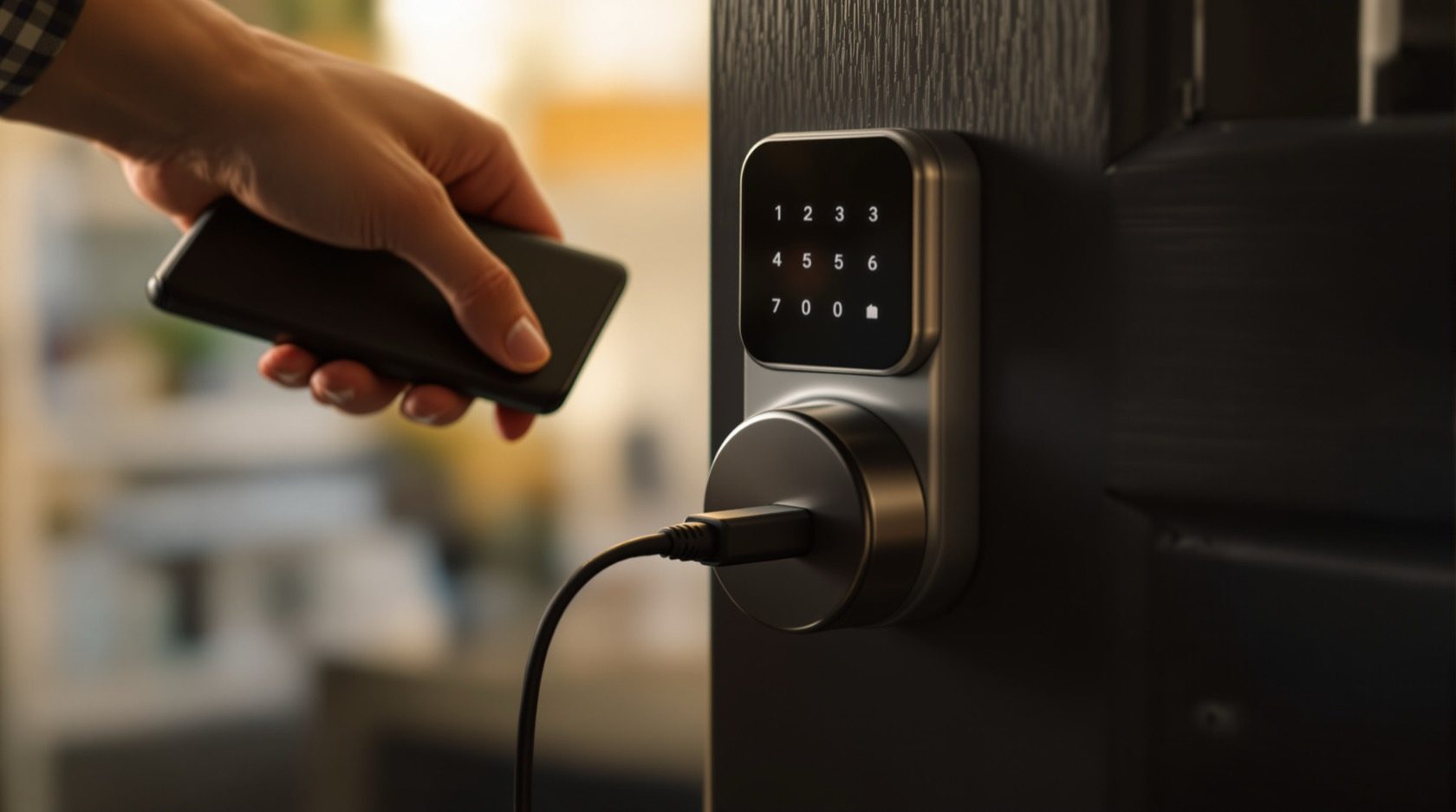
Smart Lock Troubleshooting in India (2026): Fixing Your Own Lock
A calm symptom-to-fix guide for your own smart lock when it will not open, the fingerprint or PIN stops reading, the app loses connection, or the bolt jams, with the two things that always get you back in.
A smart lock is a small computer bolted to your front door, and like any computer it will one day misbehave: the fingerprint reader ignores your thumb on a humid morning, the keypad shrugs off the right PIN, the app spins forever, or the bolt grinds and stops halfway. Almost none of this is an emergency, and almost all of it has a plain cause and a plain fix. The trick is knowing the order to try things in, and knowing the two things that will always get you back inside.
This is smart lock troubleshooting for the owner of the lock, on the owner's own door — nothing here is about defeating a lock you do not own. It is the practical companion to the smart lock maintenance guide: maintenance stops problems, troubleshooting handles the ones that slip through. It sits inside Studio Matrx's smart locks and access control hub and the complete guide to smart locks in India.
Scope & safety. This guide helps you diagnose and fix your own lock from the outside-in: batteries, sensors, codes, app and gentle bolt checks. It never explains how to open a lock you are not entitled to open. Anything involving the mains, a lock mounted at height, a bolt that keeps jamming, a fire-escape door, or a device that will not recover after a reset is a licensed professional's job — stop and call your installer or electrician. Fingerprints, PINs and app logs are sensitive personal data under the Digital Personal Data Protection Act, 2023, so keep admin codes and app accounts private. This is educational guidance, not legal advice.
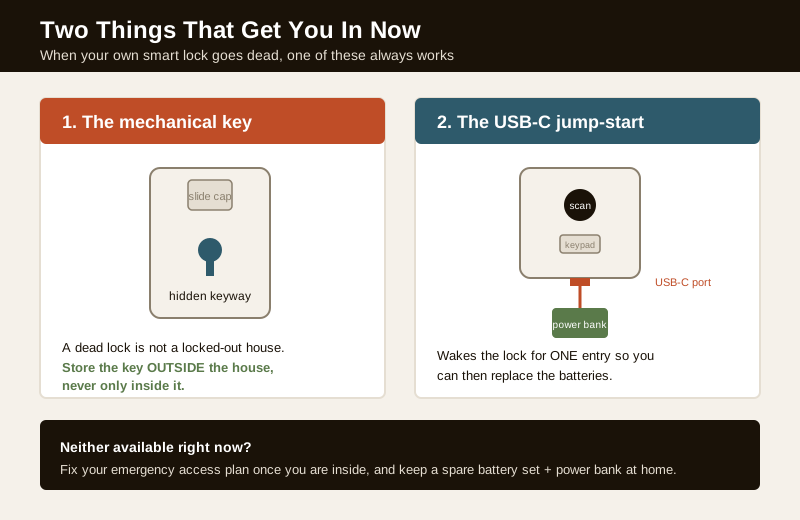
Start here: the two things that always get you in
Before any diagnosis, remember the two moves that beat almost every smart-lock scare. If you can do one of these, you are inside, and everything else becomes a calm repair rather than a lockout.
1. The mechanical key. Nearly every good smart lock sold in India keeps a physical keyway — often hidden under a slide-off cap or the logo plate on the front escutcheon. A dead lock is not a locked-out house; it is a lock waiting for its key. Keep that key somewhere you can reach without the lock — never only inside the house. See mechanical key override.
2. The USB jump-start. Most battery smart locks have a USB-C (or micro-USB) port on the underside of the outside body for exactly this moment. Touch a power bank to it and the lock wakes enough to accept your fingerprint, PIN or app command for a single entry. It does not charge the lock; it just gives it the jolt to let you in so you can then swap the batteries. This is designed for the flat-battery case covered in power and battery planning.
If neither is available right now, that is itself the lesson: fix your emergency access plan once you are inside, and read the battery guide so the batteries never surprise you again.
The master symptom-to-fix table
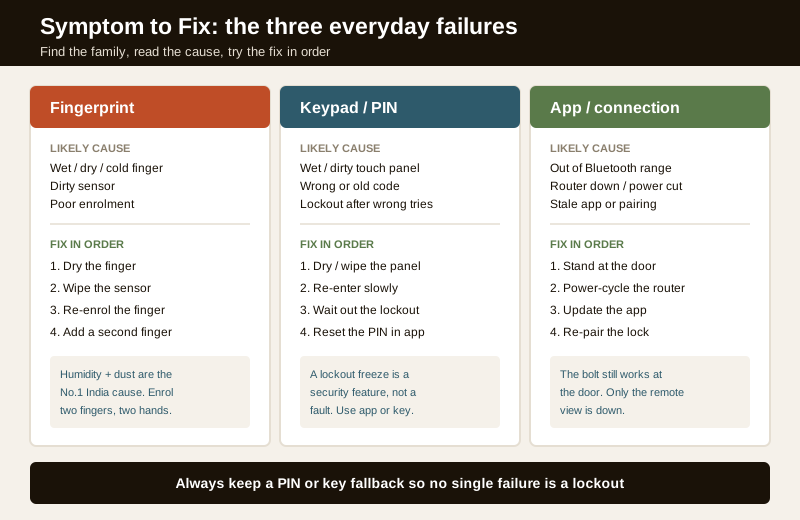
Most problems fall into a handful of families. Find your symptom, read the likely cause, and try the fix in order — cheapest and safest first. The stop-and-call-a-pro column is the important one: it tells you where owner troubleshooting ends.
| Symptom | Most likely cause | Try first (owner) | Then | Stop, call a pro if |
|---|---|---|---|---|
| Lock is dead / won't unlock at all | Batteries flat | USB jump-start, then mechanical key | Replace all batteries as a set | Fresh batteries and jump both fail; lock never wakes |
| Fingerprint not reading | Wet, dry, cold or cut finger; dirty sensor; poor enrolment | Wipe sensor and finger; use a different, drier finger | Re-enrol the finger; add a second finger/backup | Sensor still dead after cleaning and re-enrol |
| Keypad / PIN not working | Wet or dirty touch panel; wrong code; lockout after wrong tries | Dry and wipe the panel; re-enter slowly | Wait out the lockout; use app or key; reset the PIN | Panel unresponsive when clean and dry |
| App / Bluetooth / Wi-Fi won't connect | Out of range; router down; stale app or pairing | Stand at the door; restart phone Bluetooth; power-cycle router | Update app; re-pair the lock | Lock never advertises even close up after re-pair |
| Auto-lock misbehaving | Setting too short/long; door not fully shut; sensor confused | Check auto-lock timer in app; shut door firmly | Re-run door-position calibration | Locks while door still open, or never locks |
| Bolt jams / motor strains | Strike-plate misalignment; swollen door; debris | Do NOT force; check the door lines up in the frame | Note it and stop | Persistent jamming — this is a fitment job |
| Noisy / grinding motor | Alignment drag; low battery; worn gear | Fresh batteries; check alignment | Note it | Grinding continues on good batteries |
| Forgotten admin code | Lost master credential | Try any backup admin; check the app | Factory reset (see below) then re-set up | Lock will not reset or re-enrol after reset |
| Remote access dead in a power cut | Router lost power; lock still fine | Use fingerprint/PIN/key locally | Put router on a UPS | (Not the lock's fault — it is the network) |
Won't unlock or completely dead: batteries first
A smart lock that shows nothing — no beep, no light, no response — is almost always a flat battery, not a broken lock. Locks usually warn for days or weeks with low-battery beeps or a red light, but the warning is easy to miss, and cold or a sudden cell failure can drop it faster.
Work in this order:
1. Jump-start it. Touch a power bank to the USB-C/micro-USB port under the outside body. The lock should wake; open with your usual fingerprint, PIN or app, and get inside. This is a one-entry rescue, not a repair.
2. Or use the mechanical key in the hidden keyway. Both routes are covered in mechanical key override and emergency access planning.
3. Once inside, replace every battery as a set — all new, same brand, correct type, never mixing old and new or different chemistries. Good alkalines or the maker's specified cells; check whether your lock likes lithium for cold or humid conditions. The battery guide and power and battery planning explain expected life and the India power-cut angle.
4. If fresh batteries and a jump both fail, the fault is deeper — a corroded contact, water ingress, or a dead board. That is where owner troubleshooting stops and the installer starts.
Fingerprint not reading
Fingerprint failures feel dramatic but are usually about the finger, not the lock. In India, humidity and dust make this the single most common daily complaint on fingerprint locks and biometric locks.
- Wet, sweaty or just-washed finger: the sensor reads ridges, and a film of water blurs them. Dry your finger and try again.
- Very dry, cold, or cracked skin: winter and air-conditioning dry the skin so ridges read faintly. Warm the finger, breathe on it, or use a different finger you enrolled.
- Dirty sensor: dust, oil or a monsoon smear on the reader. Wipe it gently with a soft dry cloth — never anything abrasive.
- A cut, mehndi, or a bandaged finger: the print has physically changed. This is exactly why you enrol at least two different fingers, and ideally from two hands.
- Poor original enrolment: if one finger has always been flaky, delete and re-enrol it, pressing squarely and lifting-and-placing several times so the lock captures a full template.
Two habits prevent most of this: enrol a second finger as backup, and keep a PIN or key as a fallback path so a bad-fingerprint morning is never a lockout. Templates should stay on the lock, not in a cloud — see the privacy guide.
Keypad or PIN not working
A touch keypad that ignores the right code is usually physical, not electronic.
- Wet or dirty panel: rain, condensation on a humid morning, or greasy fingerprints confuse a capacitive touch panel. Dry it with a soft cloth and try again — this is a daily monsoon issue on PIN-code locks.
- Wrong code, entered in a hurry: re-enter slowly and deliberately. If several people share the lock, confirm you are using your own current code, not an old one that was deleted.
- Lockout after wrong tries: most keypads deliberately freeze for 30 seconds to a few minutes after several wrong attempts. This is a security feature, not a fault — wait it out, or use your fingerprint, app or key instead.
- Faded or unresponsive keys when clean and dry: if the panel is genuinely dead after cleaning, note it for the installer.
If you have simply forgotten a user PIN, you do not need to defeat anything — reset it from the admin menu or the app, the same account that manages users on your app-controlled lock.
App, Bluetooth or Wi-Fi won't connect
Connection problems are about the link, not the lock — the bolt still works from the keypad, fingerprint or key while you sort the network out. Work outward from the phone:
1. Range: Bluetooth locks only talk within a few metres. Stand right at the door. For a Wi-Fi lock or remote-access lock, the lock needs your 2.4 GHz network in range of the door.
2. Phone side: toggle the phone's Bluetooth and Wi-Fi off and on; some phones need location permission on for Bluetooth scanning.
3. Router side: if remote control has died, the router is the usual suspect — power-cycle it. Many "Wi-Fi lock offline" tickets are just a rebooted or renamed router, or a changed Wi-Fi password the lock still remembers wrongly.
4. App side: update the app; a stale version after a phone OS update is a common cause.
5. Re-pair: if it still will not connect, remove the lock from the app and re-pair it fresh, following the maker's steps.
If the lock never even appears when you are standing right at it with a fresh app and a re-pair attempt, the wireless module may have failed — that is an installer call.
Auto-lock misbehaving
Auto-lock — the lock throwing the bolt by itself a set time after the door closes — is brilliant until it locks at the wrong moment.
- Locks too soon (on your heels): lengthen the auto-lock timer in the app, or turn auto-lock off while you are carrying loads in and out.
- Never locks: check the door is closing fully and squarely; a door that does not seat means the lock thinks it is still open. Re-run any door-position calibration the app offers.
- Locks while the door is open: this is the dangerous one — the bolt can shoot into the frame edge or trap someone. Turn auto-lock off and get the door alignment and sensor checked. This overlaps with fire-egress compatibility: an escape-route door must always allow free exit.
Bolt jamming or motor straining: usually a fitment problem
This is the symptom to treat with respect. If the bolt grinds, stalls halfway, or the motor strains and whirs without throwing the bolt, the cause is almost always strike-plate misalignment — the bolt and the hole in the frame no longer line up, so the motor is fighting the door.
- Do not force it, repeatedly retry, or jam a tool in. Forcing a straining motor burns it out and can snap the bolt.
- Look at the door. Indian seasons swell and shrink timber; a door that shut easily in summer can bind in monsoon. If you can see the bolt hitting the frame edge rather than sliding into the strike, the door or strike needs adjusting.
- This is a fitment job, not a software one. Aligning a strike, planing a swollen door, or re-seating a mortise or deadbolt body is work for your installer — see installation requirements and door compatibility. Persistent jamming after batteries and a quick look means stop and call them.
A noisy or grinding motor is the same story in miniature: fresh batteries first (a weak motor drags and groans on low power), then alignment. If it still grinds on good batteries, the gear is wearing and the installer should look before it fails entirely.
Forgotten admin code: the factory reset, at a high level
If you have lost the master/admin credential — the code that manages every user — and no backup admin exists, the recovery path is a factory reset: returning the lock to its as-new state, then setting it up again from scratch.
At a high level, and always following your own model's manual:
1. Get inside first (key or jump-start) — you almost always reset from a reset button on the inside body.
2. Back up what you can — note which users and schedules you will need to re-add.
3. Hold the reset button (often with battery removal/replacement in a set sequence) until the lock signals a reset.
4. Re-enrol your admin, then fingerprints, PINs and app pairing fresh.
A reset wipes every stored fingerprint, PIN and pairing — which is also why you should factory-reset a second-hand lock, and why you delete a departed user promptly rather than resetting the whole lock (privacy guide, audit trails). If the lock will not reset or will not re-enrol afterwards, it may be a firmware fault — an installer or the maker's service centre, not more retries.
Remote access dead in a power cut
A very common India scare: "my Wi-Fi lock went offline and I cannot open it remotely." Two calm truths:
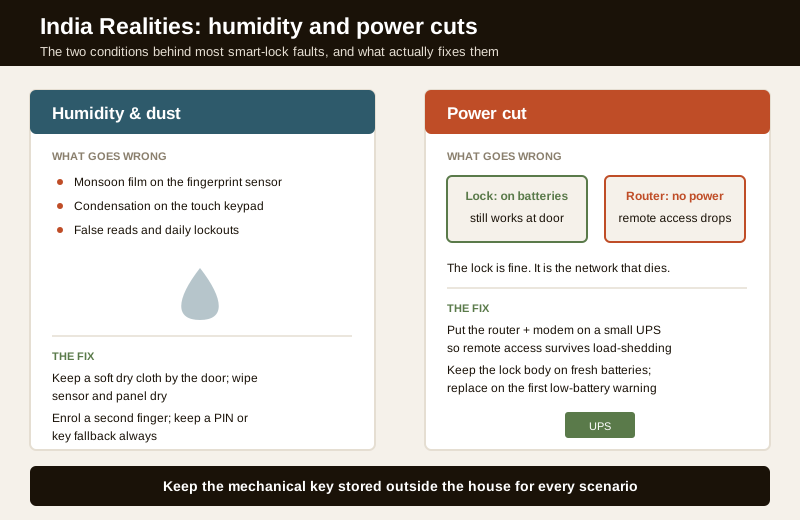
- The lock itself is fine. It runs on its own batteries, so fingerprint, PIN and key all still work at the door. Only the remote view is down.
- It is the network, not the lock. A power cut kills your router, so the lock has nothing to talk to. The fix is not on the lock at all: put the router (and ONU/modem) on a small UPS or inverter, so the internet — and therefore remote access — survives load-shedding. This is the same logic as keeping a remote-access lock genuinely reachable, and it pairs with the power planning in power and battery planning.
For hardening the account behind that remote access — strong password, 2FA, no stale installer access — see the cybersecurity guide.
The India realities behind most faults
Two conditions cause a disproportionate share of Indian smart-lock trouble, and both are worth designing around rather than fighting daily:
- Humidity and dust. Monsoon film on a sensor, condensation on a touch keypad, and dust in the works cause most false reads. Keep a soft dry cloth by the door, enrol a second finger, and always keep a PIN or key path so a damp morning is never a lockout. Regular wiping — the maintenance guide — prevents most of it.
- Power cuts. Dead batteries and offline routers are the two power-related faults. Batteries: replace on the first low-battery warning, keep a spare set and a power bank at home. Router: put it on a UPS so remote access survives load-shedding.
When to bring in a professional. Do the owner fixes yourself: batteries, jump-start, sensor and keypad cleaning, re-enrolment, re-pairing, PIN resets and checking the door lines up. Stop and call your installer or a licensed electrician for a lock mounted at height, any mains-wired lock or interlock, a bolt that keeps jamming or a straining motor (a fitment problem — see installation requirements), a fire-escape door (fire-egress compatibility), or a lock that will not recover after a factory reset (a possible firmware brick — the maker's service centre). Never force a jammed bolt, and never trade away free exit for convenience.
Key takeaways
- The two things that always get you in are the mechanical key and the USB jump-start — keep the key stored outside the house and a power bank at home, and a dead lock is never a locked-out house.
- Most fingerprint and keypad failures are the finger or the panel, not the lock — dry and wipe, use or re-enrol a second finger, and always keep a PIN or key fallback for humid Indian mornings.
- Connection problems are the link, not the bolt — the lock still works at the door; power-cycle the router, update and re-pair the app, and never panic that an offline Wi-Fi lock has trapped you.
- A jamming bolt or straining motor is a fitment job — do not force it; it is almost always strike-plate misalignment and belongs to the installer, not to more retries.
- Design around India's two realities — wipe sensors against humidity and dust, and put the router on a UPS so remote access survives a power cut; treat fingerprints, PINs and app logs as sensitive data under the DPDP Act, 2023.
References
- Digital Personal Data Protection Act, 2023 — fingerprint templates, PINs, access logs and app-account data are sensitive personal data; keep admin codes and app accounts private, keep biometric templates on the device, and delete a departed user rather than sharing credentials.
- Manufacturer specifications and user manuals — confirm the exact jump-start port, mechanical-key location, low-battery behaviour, lockout timing and factory-reset sequence on your own model's datasheet before acting.
- National Building Code of India (SP 7), Bureau of Indian Standards, and local fire and municipal bye-laws for any escape-route, mains-wired or fire-interlock aspect of a lock; verify the current edition via the BIS catalogue: https://www.services.bis.gov.in/
This is an educational overview, not legal advice. Work at height, mains wiring, fire-egress interlocks, persistent bolt jamming and any firmware-level recovery are qualified professional tasks — engage a licensed installer or electrician, and verify any standard's current status via the BIS catalogue before relying on it.
Export this guide
Related Guides — Deep-dive reading
Access Control Maintenance in India (2026): Readers, Locks and Fail-Safe Egress
How to keep a card, keypad, fingerprint or face access-control system reading reliably and locking securely — and, above everything, how to test that its doors still release on a fire alarm and on power loss, so an access-controlled door never becomes a life-safety trap.
SecuritySmart Home Maintenance & Troubleshooting for Indian Homes
A smart home is not a one-time purchase — it is a small fleet of computers that needs firmware updates, fresh batteries, occasional reboots and a plan for the day a manufacturer switches off the cloud. This guide gives you a maintenance calendar, a troubleshooting flow for the failures Indian homes actually see, and the UPS and security hygiene that keep it all running through power cuts and voltage swings.
Smart HomeFingerprint Locks in India (2026): How Biometric Door Locks Really Work, and Their Honest Limits
How a fingerprint sensor reads a finger and matches it to enrolled templates, the genuine appeal of nothing to carry, and the wet-finger, elderly, privacy and backup realities every Indian buyer must weigh before choosing one.
SecurityRelated Tools — Try Free
Access-Control Battery-Backup Calculator
Size the standby battery so an access system keeps running through a power cut, with an egress life-safety note.
Battery BackupSecurity Backup Power Calculator
Size a UPS/inverter and battery to keep CCTV, NVR, router and alarm running through a power cut — load, Ah, VA and cost.
Backup PowerBiometric-Capacity Calculator
Whether a biometric reader can hold all the enrolments and how many devices you need, with a 1:N speed note.
Biometric Capacity