
Security Password Management in India (2026): The Cheapest, Biggest Win for Your Whole System
Weak, default and reused passwords are the single commonest way home and society security systems get taken over — and fixing them costs nothing. This homeowner guide shows the practice: change every default, use a unique strong password per device, let a password manager do the remembering, add MFA, and close the installer-handover gap.
Ask a security engineer for the single change that protects the most homes for the least money, and the answer is almost never a new gadget. It is this: change the default password, and never use the same one twice. Most security systems that get taken over are not defeated by clever attacks — they are opened by a password that was left at the factory setting, or guessed because it was 1234, or reused from a website that leaked years ago. The lock on your gate can be flawless, but if the camera watching that gate still logs in with admin/admin, the whole system is standing open.
Security password management is simply the habit of giving every device, app and account its own strong password, remembering them safely, and changing them when you should. It is the cheapest, highest-leverage thing a homeowner or a society can do — no new hardware, no subscription, just discipline. This guide is written for homeowners, families and resident welfare associations, and it is strictly protective: everything below helps you close a door, never open someone else's. It sits under the security-system cybersecurity pillar in the cybersecurity sub-hub, and pairs naturally with multi-factor authentication and secure Wi-Fi for security devices.
Scope & safety. This guide helps you protect passwords on systems you own or manage — cameras, DVR/NVR, hubs, locks, the router, and your monitoring and app accounts. It never explains how to guess, crack or defeat anyone's password; weak passwords appear only as the gap you close. Passwords are one layer: pair them with MFA, updates and a segmented network — no single control is enough. Login credentials, saved logs and access lists are personal data under the Digital Personal Data Protection Act, 2023; treat a suspected account takeover as an incident and report a serious compromise to India's national CERT (CERT-In). For anything beyond these basics, ask a qualified IT/security professional. This is educational guidance, not legal advice.
Why passwords are the biggest, cheapest win
A security system is a pile of small computers — every camera, the DVR or NVR, the smart hub, each lock, the router, and the accounts in the phone apps and the monitoring portal. Each one has a login. And in India, the same failure repeats in home after home and society after society:
- The DVR or NVR is still on admin/admin or admin/12345, months after it was installed.
- The installer set one password and used it on the cameras, the recorder, the app and the router — and it is a password he uses on his other jobs too.
- The family shares one PIN for the smart lock and one login for the camera app, told to the maid, the driver, the tuition teacher and three relatives.
- A cheap no-name camera shipped with a hardcoded password printed in its manual — the same on every unit sold — and it is now sitting on the public internet.
None of these needs a hacker of any skill. A weak or default password is not a wall someone climbs; it is a door someone walks through. The good news is the fix is free and entirely in your hands. You do not need to understand any attack to protect yourself — you need only three habits: change every default, make each password unique, and let a password manager carry the load. Get those right and you have closed the single largest category of security-system compromise, at a cost of an evening.
Habit 1 — change every default, everywhere
The very first thing any new device deserves is a new password. Defaults exist so the installer can log in the first time; they are public knowledge, often printed in a manual anyone can download, and frequently identical across every unit of a model. Leaving one in place is the most common — and most avoidable — exposure in the whole of home security.
Change the default password (and the default username where you can) on every part of the system:
- Cameras — each camera, not just the recorder. On many systems a camera has its own login separate from the DVR.
- DVR / NVR — the recorder holds all your footage; it deserves a strong, unique password of its own.
- The smart hub and any bridge or gateway for smart security.
- Smart locks — the admin account, plus a clean-up of any factory or demo PINs (more on lock PINs below).
- The router — its admin password is the master key to your whole network; change it and see secure Wi-Fi for security devices.
- App and cloud accounts — the camera app, the monitoring portal, any manufacturer cloud login.
If a device cannot have its default password changed at all, treat that as a reason not to buy it — a device with a permanent hardcoded login can never be made safe, no matter how careful you are.
Habit 2 — one unique, strong password per account
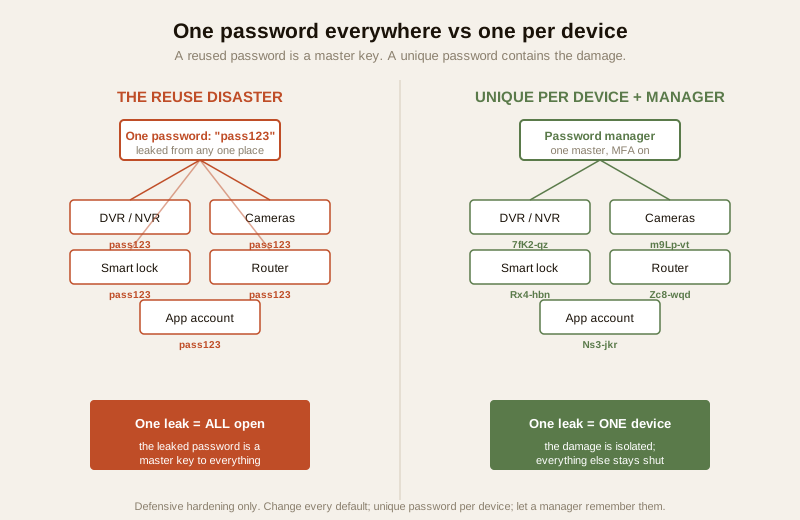
Changing defaults is half the job. The other half is making sure no two logins share a password. The reason is simple and worth stating plainly: if you reuse one password everywhere, a leak from any single place becomes a master key to everything. Websites and apps are breached constantly; when they are, lists of email-and-password pairs circulate. If the password on your camera app is the same one you used on some shopping site that leaked, then your cameras are, in effect, already exposed — through no fault of your camera at all. A unique password per account contains the damage: one leak opens one thing, not the whole house.
What makes a password strong? Length beats complexity. A long passphrase — several unrelated words strung together, ideally with a number or symbol — is both far harder to guess and far easier to live with than a short tangle of symbols you will forget. Aim for length; avoid names, birthdays, your address, the building name, or anything printed on the device.
| Do | Don't |
|---|---|
| Change every default on every device, app and account | Leave admin/admin, 1234 or a factory PIN in place |
| Use a unique password per device and account | Reuse one password across cameras, DVR, lock and router |
| Favour a long passphrase (length over symbols) | Pick short, guessable words — names, birthdays, address |
| Store them in a password manager | Keep them in a WhatsApp note, a diary or a sticky note |
| Add MFA on every account that offers it | Rely on the password alone as the only lock |
| Rotate admin passwords after any breach or a leaver | Never change a password once set, for years |
| Give people named logins / their own PINs | Share one password or PIN with the whole family and staff |
| Change all admin passwords after the installer leaves | Assume the installer forgot the passwords he set |
Habit 3 — let a password manager do the remembering
Here is the honest problem: nobody can memorise a different long passphrase for a camera app, a DVR, a lock, a router, a monitoring portal and a dozen other accounts. So people do the human thing — they reuse one password, or write them all in a phone note or a diary. Both undo the work.
The realistic answer, and the single highest-leverage habit in this whole guide, is a password manager. It is an app that generates a strong unique password for every account, stores them all encrypted, and fills them in for you — so you only ever remember one master password, the one that unlocks the manager itself. With a manager you get unique-everywhere for free, because you are no longer the one doing the remembering.
- Pick one reputable password manager and use it for the whole system — the camera app, the DVR, the hub, the locks, the router, the monitoring portal.
- Let it generate the passwords. Its random passphrases are far stronger than anything you would invent, and you never have to recall them.
- Protect the master password like the key it is. Make it long and unique, do not reuse it anywhere, and turn on MFA for the manager itself. Set up the manager's own recovery so you are not locked out.
- Stop keeping passwords in chat or on paper. A WhatsApp note, a shared Google Doc or a sticky on the DVR is a leak waiting to happen; move them into the manager and delete the loose copies.
You do not have to switch everything in a day. Start with the highest-value logins — the DVR/NVR, the router, the lock, the monitoring account — and move the rest across as you touch them.
Habit 4 — never reuse, never share casually, and rotate when you should
Two more habits round out the discipline, and both are about people rather than technology.
Never share the master security passwords casually. The password to the recorder, the router or the monitoring portal is not a thing to send on WhatsApp to the installer, the neighbour or the family group. Every person who knows it is another place it can leak from. Where someone genuinely needs access, give them their own login — see named accounts below — rather than handing over the master.
Rotate — replace — after a breach or a departure. Passwords are not "set once forever". Change the relevant passwords when:
- A service you use announces a breach — if the camera-app maker or a service you signed into is compromised, change that password (and anywhere you might have reused it — which a manager makes easy to check).
- Someone with access leaves — a departing guard, an ex-tenant, staff who are let go, or the installer after a job. Anyone who knew a password should stop being able to use it the day they go.
- You simply suspect something is off — a login you do not recognise, a device behaving strangely. When in doubt, change it; it costs nothing.
The installer-handover problem in India
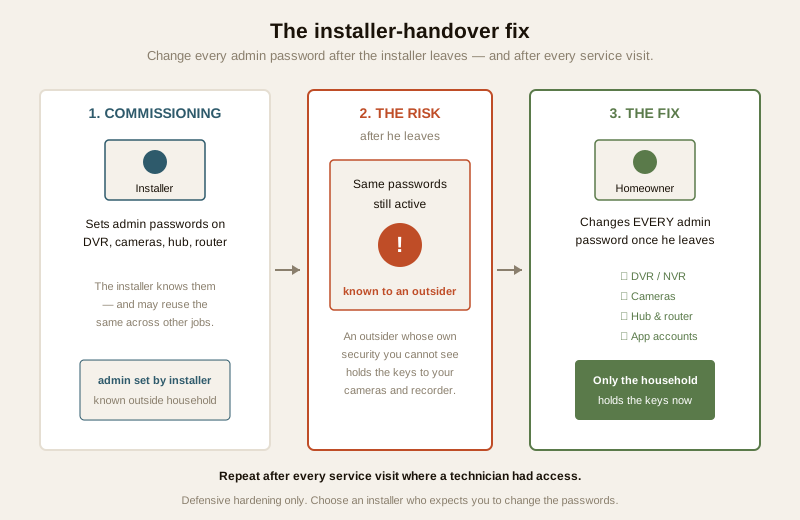
This one deserves its own section because it is so common and so quietly dangerous. In India, your security system is very often installed by a technician who sets the passwords — and then keeps them. The same installer may reuse that password across every client's system, store it in a plain list on his phone, or simply never change it from a habitual default he uses on every job. It may also be shared with whoever from his firm comes for the next service visit.
That means the person who knows how to log into your cameras, your recorder and your locks is someone outside your household, whose own security you cannot see. This is not an accusation against installers — most are honest — but honesty is not the point. The point is that you should be the only one who holds the current admin passwords to your own system. So:
- After the installer finishes, change every admin password he set — the DVR/NVR, the cameras, the hub, the router, the app accounts. Do it yourself, or watch it done, so the handover password is retired.
- Change them again after any service visit where a technician had access, for the same reason.
- Choose your installer with this in mind. A professional who expects you to change the passwords, and hands you a clean written list of what was set, is a good sign. Judge vendors with the installer and vendor evaluation guide and the deeper vendor cybersecurity assessment.
Layer MFA on top — a password alone is not enough
A strong unique password is the foundation, but it is still one lock, and one lock can be lost. Multi-factor authentication (MFA/2FA) adds a second step to a login — a one-time code or an approval on your phone — so that even a stolen or guessed password is not, by itself, enough to get in. On the accounts that matter — the camera app, the monitoring portal, the smart-lock app and, above all, your password manager — turn MFA on wherever it is offered. It is the single biggest upgrade you can stack on top of good passwords, and it turns "someone learned my password" from a disaster into a non-event. The full how and why is in the multi-factor authentication guide.
Account recovery and who has access — for families and societies
Passwords are also about people and access, and this matters most where a system is shared. A society's gated-community security is the sharpest example: a common NVR or CCTV system that the whole managing committee, the guards and the AMC vendor all touch.
- Named accounts, not one shared login. Give the guard, each committee member and the vendor their own login rather than a single password everyone knows. Then the access log tells you who did what, and you can remove one person without disrupting everyone.
- Keep an access list — and prune it. Write down who has access to each system and review it periodically. When a guard changes agency, a committee member's term ends, or an AMC contract switches vendors, remove the leaver's access the same day. An access list nobody maintains is how ex-staff keep a login for years.
- Sort out account recovery in advance. Know how each account is recovered — the recovery email or phone — and make sure it points to a current, controlled address, not a former secretary's personal email. For a society, tie recovery to a role or a committee-controlled account, so it survives a change of office-bearers.
- Protect the recovery channel itself. The email or phone that resets a password is as powerful as the password; secure those accounts with strong passwords and MFA too.
PINs and codes for locks and alarms
The same discipline extends to the numeric PINs and codes on smart locks and alarm keypads — with one difference: these are often shared with more people, so the "one PIN for everyone" trap is even easier to fall into.
- Give each person their own code where the lock supports multiple PINs — one for each family member, and separate, clearly-labelled codes for the maid, the driver, the cook or a guest. A per-person code means you can delete that code when that person leaves, without changing anyone else's.
- Change codes on staff turnover. When domestic staff leave, delete their code the day they go — exactly as you would take back a physical key. A code that outlives the person is an open door.
- Avoid guessable PINs — not 1234, not 0000, not the flat number, not a birthday. Use time-limited or one-time codes for guests and deliveries where the lock offers them.
- Retire installer and demo PINs set during installation, just as you change the admin passwords.
The law and the loose ends
Two quieter points close the discipline.
Stored credentials and logs are personal data. The list of who has access, the login records showing who armed or opened what, and any saved credentials are personal data under the Digital Personal Data Protection Act, 2023. Keep only what you need, restrict who can see the access list, and delete a departed person's records and codes rather than leaving them lying in the system. If an account is genuinely taken over — an unfamiliar login, credentials you know have leaked — treat it as an incident: change the passwords, check MFA, preserve any logs, and report a serious compromise to India's national CERT (CERT-In) as appropriate.
Do not leave passwords on retired devices. When a camera, recorder or lock is replaced, its saved logins, saved Wi-Fi password and any account links can still be inside it. Wipe or factory-reset a device before it leaves your hands — the same care you would take with an old phone.
A password hardening checklist
Run this once across your whole system, then revisit it whenever you add a device, after a service visit, or when someone with access leaves. It is a light habit, not a specialist skill.
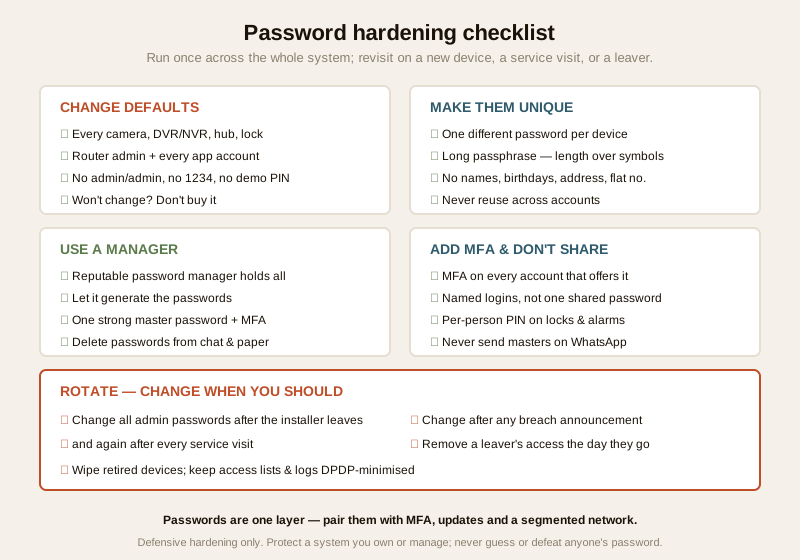
1. Defaults: every camera, DVR/NVR, hub, lock, router and app account changed off its factory password.
2. Unique: no two logins share a password; each is a long passphrase.
3. Manager: a reputable password manager holds them all, behind one strong master password.
4. MFA: turned on for the manager, the camera app, the monitoring portal and the lock app.
5. No sharing: named logins for each person; per-person PINs on locks; master passwords never sent on chat.
6. Installer: all admin passwords changed after installation and after every service visit.
7. Access list: who-has-access written down and pruned; leavers removed the day they go.
8. Recovery: recovery email/phone current, controlled and itself protected.
9. Locks & alarms: unique PINs per person, changed on staff turnover, no 1234/0000.
10. Disposal & data: retired devices wiped; access lists and logs DPDP-minimised.
You can gauge where your system stands overall with the home-security risk scorecard.
When to bring in a professional. Changing defaults, choosing a password manager, turning on MFA, giving people named logins and pruning an access list are all yours to do — no specialist needed. Bring in a qualified IT or security professional if you are securing a large society system, if you suspect an account has actually been taken over, or if a device will not let you change its password at all. If an account behaves strangely in a way a password change and MFA do not fix, contact the vendor's official support, preserve the logs, and treat a suspected breach as a reportable incident.
Key takeaways
- Passwords are the cheapest, biggest win in home security. Most systems that get taken over are opened by a default, weak or reused password — not by a clever attack. Fixing that costs nothing.
- Change every default and make each password unique. A reused password turns one leak into a master key; a unique password per device contains the damage to that one device. Favour long passphrases over short tangles.
- A password manager is the realistic way to do this — it generates and remembers a strong unique password for every account, so you only memorise one master password. Protect that master with MFA.
- Layer MFA on top and never share the masters casually. A password alone is one lock; MFA means a stolen password is not enough. Give people named logins and per-person PINs, and rotate after a breach or a departure.
- Close the India installer-handover gap: change all admin passwords after the installer leaves and after every service visit, keep a pruned access list with named accounts for shared society systems, and remember stored credentials are DPDP personal data.
Where to go next
- Start at the security-system cybersecurity pillar and the cybersecurity sub-hub.
- Build the fundamentals: multi-factor authentication, secure Wi-Fi for security devices, firmware updates and network segmentation.
- Apply it to devices: CCTV cybersecurity, smart-lock cybersecurity and alarm-system cybersecurity.
- Handle people and vendors: installer and vendor evaluation, the vendor cybersecurity assessment and gated-community security.
- Gauge your overall exposure with the home-security risk scorecard, then return to the security hub.
References
- Digital Personal Data Protection Act, 2023 — saved login credentials, access lists and login/arm/open records are personal data; keep only what you need, restrict who can see them, and delete a departed person's records and codes.
- CERT-In (Indian Computer Emergency Response Team) — India's national incident-response body; treat a confirmed account takeover or credential compromise as a reportable cyber incident and follow current CERT-In guidance.
- NIST and OWASP password and authentication guidance — general, vendor-neutral best practice favouring length over forced complexity, unique credentials, password managers and multi-factor authentication; verify the current edition before relying on it.
- CIS security best-practice benchmarks — vendor-neutral guidance on changing default credentials, account hygiene and least-privilege access for networked devices; verify the current version.
- Manufacturer documentation for each device — confirm on the maker's own material that the default password can be changed, that per-user logins and per-person PINs are supported, and how account recovery and MFA are set up, before relying on them.
This is an educational overview, not legal advice, and it deliberately covers only how to protect passwords on a system you own or manage — never how to guess, crack or defeat anyone's password. For a large society system, a suspected account takeover, or a device that will not let you change its password, engage a qualified IT/security professional, and verify any framework's current guidance before relying on it.
Export this guide
Related Guides — Deep-dive reading
Complete Guide to Security System Cybersecurity in India (2026): Protecting the Systems That Protect You
The cameras, locks, alarms and door phones you install to feel safer are internet-connected computers that can themselves be attacked, and an insecure one is worse than none. This pillar maps the whole attack surface — devices, network, accounts and data, operations — and points to every guide that hardens it.
SecurityCCTV Remote Access in India (2026): Watch From Your Phone, Safely
How to view your own cameras from anywhere without leaving the front door open to the internet — change the defaults, use strong credentials and 2FA, keep firmware current, prefer the vendor's secure cloud relay or a VPN, segment the camera network, and treat footage as personal data.
SecurityMulti-Factor Authentication for Security Systems in India (2026): The Second Lock on Your Cameras, Locks and Monitoring Accounts
A strong password can still be stolen, phished or leaked. Multi-factor authentication adds a second factor so a stolen password alone cannot open your cameras, hub, smart locks or monitoring account. This defensive homeowner guide ranks the factor types honestly, shows exactly where to switch MFA on, and keeps you from getting locked out.
SecurityRelated Tools — Try Free
Security Vendor Evaluation Scorecard
Rate a CCTV/security installer or guarding agency across eight weighted criteria for a hire / negotiate / walk-away verdict.
Vendor ScorecardCCTV Cloud vs Local Cost Calculator
Compare cloud CCTV subscription against a local NVR + HDD — upfront, 5-year total, monthly fee and break-even.
Cloud vs LocalHome Security Risk Scorecard
Score your home across six security layers — perimeter, entry points, lighting, detection, alarm and habits — and get a prioritised action plan.
Security Scorecard