
Secure WiFi for Security Devices in India (2026): The Road Every Camera, Lock and Sensor Rides On
Your wireless cameras, locks, sensors and doorbells all travel over one road: the home or building Wi-Fi. If that road is left on the default password printed on the ISP router, nothing on it is safe. This homeowner guide hardens the router first, then the encryption, then puts the security devices on their own separate network.
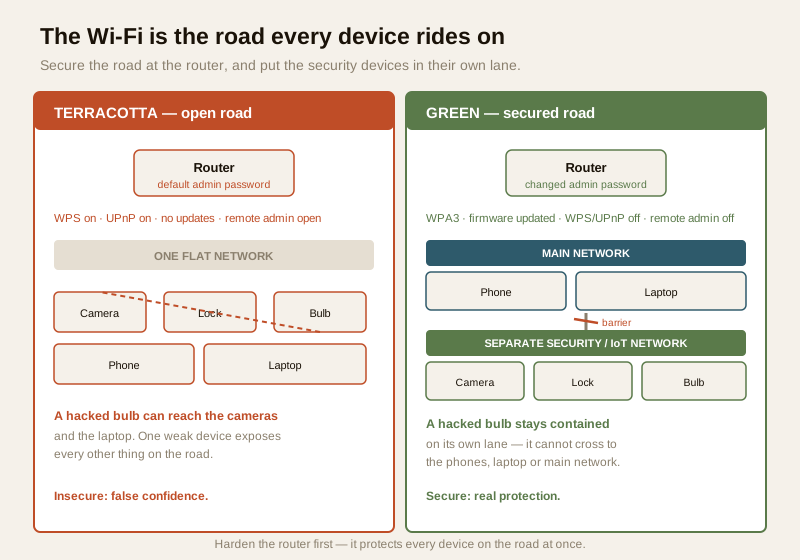
Think of your home Wi-Fi as a road. Every wireless thing you have bought for safety — the Wi-Fi camera watching the gate, the smart lock on the front door, the motion sensor in the hall, the video door phone at the entrance — travels on that one road. It carries the live video, the unlock command, the alert to your phone. If the road is safe, the traffic on it is much harder to touch. If the road is left wide open, then no matter how good the individual devices are, everything riding on it is exposed. This is why securing the Wi-Fi is foundational — it is the first thing to get right, before any single device.
The common India reality is uncomfortable. In most homes the ISP-supplied router is still running on the default admin password printed on the sticker on its underside, its firmware has never been updated, and every device — the phones, the laptop, the TV, the cheap smart bulb, and the security cameras — all sit on one flat network together. That arrangement means a single weak or hacked gadget can reach everything else. This guide, aimed at homeowners and small building owners, walks through how to make the road safe: harden the router, use strong encryption, and put the security devices on their own lane.
Scope & safety. This guide helps you secure Wi-Fi you own and control, so the security devices riding on it are harder to reach. It is strictly defensive — every weakness named (default passwords, WPS, an open network, one flat network) is named so you can close it, never so anyone can exploit it. It never explains how to break into a network. A security device that depends only on Wi-Fi will go quiet when the router, power or internet drops, so critical protection should never rest on Wi-Fi alone. Router and camera footage, and the accounts tied to them, are personal data under the Digital Personal Data Protection Act, 2023; treat a suspected compromise as an incident and report a serious one to India's national CERT (CERT-In). For anything beyond these basics — a managed VLAN, a large building network — engage a qualified IT or network professional. This is educational guidance, not technical or legal advice.
The router comes first
The router is the gate onto the road, and it controls everyone who uses it. Securing it well protects every device behind it at once, so this is where the effort pays back the most. None of the steps below need special skills — they are settings inside the router's own app or admin page.
- Change the default admin password. This is the single most important step. The username and password printed on the router's label, or the well-known admin/admin and admin/password pairs, are public knowledge — the same sticker is on millions of identical units. Set a long, unique admin password that is written down safely in a password manager, not left as the factory default. Everything else you do is undermined if anyone can simply log in and undo it.
- Keep the router firmware updated. The router is a small computer running software, and that software gets security fixes. An un-updated router is a door left on the latch. Turn on automatic updates if the router offers them, or check for an update every few months. The firmware-updates guide explains the habit for every device, and the router is the most important one to keep current.
- Disable remote router administration from the internet. Many routers offer a feature that lets you log into the router's settings from anywhere on the internet. Unless you have a specific need and know how to secure it, turn this off. With it off, an attacker on the public internet cannot even reach the router's login page — the settings are reachable only from inside your own home.
- Disable WPS and UPnP where practical. WPS (the one-button Wi-Fi pairing feature) and UPnP (which lets devices open ports on the router by themselves) are conveniences that also widen the attack surface. On most home networks you can turn both off and simply type the Wi-Fi password to connect a new device. If a particular device genuinely needs UPnP, prefer to set up its access deliberately rather than leaving the door open for everything.
Use strong Wi-Fi encryption
Encryption is what scrambles the traffic on the road so a passer-by cannot simply read it out of the air. Getting this right is a matter of choosing the correct setting and a good passphrase.
- Use WPA3, or WPA2 with AES at minimum. In the router's wireless-security settings, choose the strongest option your router and devices support. WPA3 is the current strong standard; where a device is too old for it, WPA2 (with AES) is the acceptable minimum. If your router offers a mixed WPA2/WPA3 mode, that lets newer devices use the strongest available while older ones still connect.
- Never run an open or WEP network. An open network has no password and no encryption — anyone nearby is on your road. WEP is an old, long-broken scheme that offers no real protection today. Neither belongs anywhere near a security camera or a lock. If these are the only options a device supports, that device is too old to trust with anything sensitive.
- Set a long, unique Wi-Fi passphrase. The Wi-Fi password should be long and used nowhere else. A short or guessable passphrase is the weak link that undoes strong encryption. You only type it occasionally, so length costs you nothing — a memorable phrase of several unrelated words is both strong and practical, and can live in your password manager.
- Change the network name if it reveals too much. A network named after your flat number or the router's exact model tells a stranger more than they need. A neutral name gives away nothing while changing nothing about how you connect.
| Encryption setting | What it means | Verdict for security devices |
|---|---|---|
| WPA3 | Current strong Wi-Fi encryption | Best — use it if router and devices support it |
| WPA2 (AES) | Widely supported, still solid | Acceptable minimum |
| WPA2/WPA3 mixed | Newest devices get WPA3, older get WPA2 | Good practical choice for a mixed home |
| WEP | Old, long-broken scheme | Never — offers no real protection |
| Open / no password | No encryption at all | Never — anyone nearby is on your network |
Give the security devices their own network
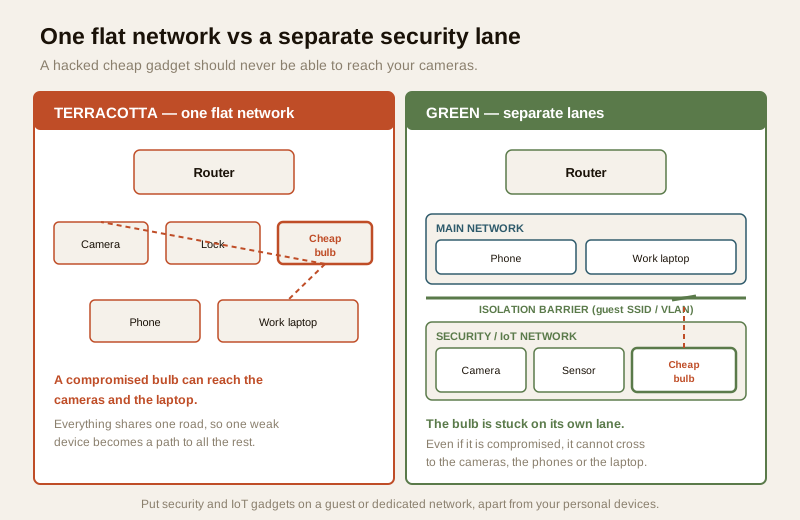
Here is the idea that protects you the most for the least effort: do not put everything on one flat network. When the cameras, the lock, the cheap smart bulb, the phones and the work laptop all share a single network, a weakness in any one of them becomes a path to all the others. The classic worry is the ₹-cheap smart gadget with sloppy security: if it is compromised, it should not be able to reach your cameras or your PC.
The defence is a separate network for the security and IoT devices:
- Use a guest or dedicated network for IoT and security gadgets. Most modern routers can run a second network (a separate SSID) that is isolated from the main one. Put the cameras, sensors, bulbs and other connected devices on it, and keep your phones, laptops and personal files on the main network. A device compromised on the isolated network then has no easy route across to your important devices. This is network segmentation done the simple, home-friendly way.
- On managed setups, a VLAN does the same job more firmly. In a larger building or a keen setup, a VLAN (virtual LAN) draws the same boundary at a deeper level. That is a job for someone comfortable with managed networking — the network-segmentation guide goes into it — but the goal is identical: a hacked bulb cannot reach the cameras.
- Think about what should talk to what. Your camera app on your phone needs to reach the cameras; the smart bulb does not. Keeping the two groups apart means a problem in the throwaway gadget stays contained.
Hardwire what you can — don't put everything on Wi-Fi
Wi-Fi is convenient, but for the devices that matter most it is not always the best choice. If a device can be wired, wiring it is usually both more reliable and less exposed.
- A wired camera or NVR is steadier and harder to reach over the air. A wired CCTV camera and NVR does not depend on a wireless signal that can weaken, drop or be interfered with, and it is not sitting on the airwaves for a passer-by to probe. For the cameras you rely on, a cable is a quiet upgrade in both reliability and security.
- PoE makes wiring one cable, not two. Power-over-Ethernet runs power and data down a single cable, which makes hardwiring cameras far tidier than it sounds — the PoE switch and budget guide shows the practical side. For a home being wired or renovated, running cable to the key camera points is worth doing.
- Keep Wi-Fi for where wiring is genuinely impractical. A battery doorbell on a boundary wall or a sensor in a spot no cable reaches is a fair use of Wi-Fi. The point is not to ban wireless — it is to not put a critical, wire-capable device on Wi-Fi out of habit when a cable would serve it better.
Wi-Fi security dies when the road closes — plan for it
This is the honest limit of every Wi-Fi security device, and it must shape what you rely on. A wireless camera, lock or sensor needs three things to work: the router, power and often the internet. Take any one of those away and a Wi-Fi-only device goes quiet. A power cut, a tripped mains, a broadband outage, or simply an unplugged router, and the wireless camera stops recording and the app stops alerting.
That is graceful degradation in reverse — and the lesson is that critical security should never depend on Wi-Fi alone.
- Do not let your only protection rest on the router staying up. If the safety of the home hinges on a wireless camera or an app alert, a five-minute power cut is a five-minute blind spot. Read internet and network readiness for security for how to think this through.
- Back the router and key devices on power. Putting the router, the NVR and the key cameras on a small UPS or inverter means a short outage does not blind the system — the electrical backup assessment for security shows how to size it.
- Prefer devices that keep working locally. A camera that records to a local card or NVR even when the internet is down, and a lock with a reliable physical key, both keep doing their job when the road closes. Cloud-and-Wi-Fi-only devices are the ones that fail silently.
Guests, neighbours and who has the password
The strongest passphrase is worthless once it has been shared around the building.
- Don't hand the main Wi-Fi password to everyone. The visiting cousin, the house help, the neighbour who wants to stream — each person you give the main password to is another place it can leak, and another device on the same network as your cameras. Use the guest network for visitors: it gives them internet without putting them on the network your security devices use, and you can change it without disrupting your own devices.
- Keep guests off the security network entirely. The isolated network your cameras and lock sit on should not be a network you hand out. Visitors belong on a guest lane that reaches the internet and nothing else.
- Change the password when the circle of trust changes. When house help leaves, or a shared password has clearly travelled further than intended, change it. On the guest network this is painless.
Know what is on your network
You cannot protect a road you have never looked at. Every so often, open the router's app or admin page and look at the list of connected devices. Most routers show every device currently on the network. Recognise each one — your phones, the laptop, the TV, each camera and sensor. A device you do not recognise is worth investigating: it may be a forgotten gadget, or it may be something that should not be there. This simple habit — a glance at the device list every month or two — is how many home network problems are first noticed. It costs nothing and needs no expertise.
A router and Wi-Fi hardening checklist
Run this once when you set things up, and glance at it every few months. It is a light habit, not a specialist skill.
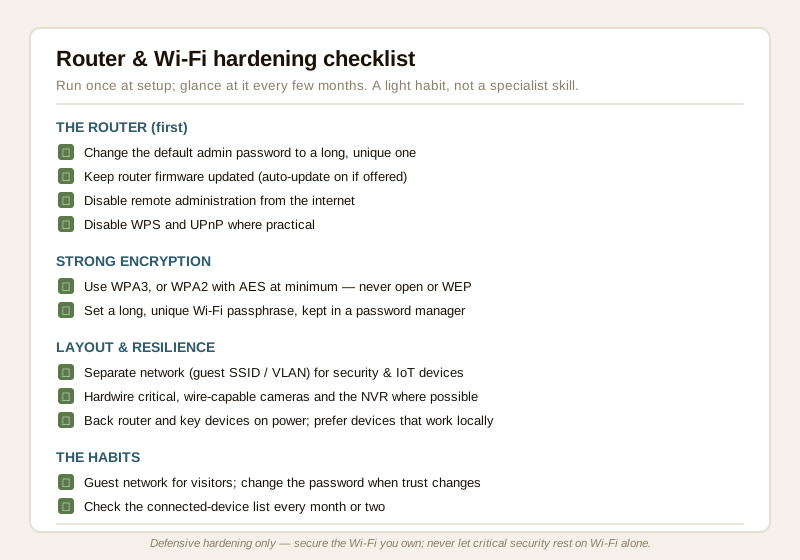
1. Admin password: the router's default admin password changed to a long unique one.
2. Firmware: router firmware updated, auto-update on if available.
3. Remote admin: administration from the internet turned off.
4. WPS and UPnP: both disabled where practical.
5. Encryption: WPA3, or WPA2 with AES at minimum — never open or WEP.
6. Passphrase: a long, unique Wi-Fi password, kept in a password manager.
7. Separate network: security and IoT devices on a guest or dedicated SSID, apart from phones and laptops.
8. Hardwire: critical, wire-capable cameras and the NVR on cable where possible.
9. Resilience: router and key devices backed on power; devices that work locally preferred.
10. Habits: guest network for visitors; password changed when trust changes; connected-device list checked every month or two.
You can gauge where your whole home stands with the home-security risk scorecard.
When to bring in a professional. Changing the router's admin password, turning on WPA3, setting a guest network, disabling WPS and checking the device list are all yours to do from the router's own app. Bring in a qualified IT or network professional for a managed VLAN, a whole-building network, structured cabling for hardwired cameras, or anything you are not comfortable configuring. If the router or a camera behaves strangely in a way a restart and password change do not fix, treat it as a possible compromise, preserve what you can, and get help.
Key takeaways
- The Wi-Fi is the road every wireless security device rides on — securing it is foundational, and the biggest single win is at the router: change the default admin password, keep firmware updated, and turn off remote admin, WPS and UPnP where practical.
- Use strong encryption: WPA3, or WPA2 with AES at minimum, with a long unique passphrase — never an open network or WEP, which offer no real protection.
- Give the security and IoT devices their own separate network (a guest SSID or a VLAN) so a hacked cheap gadget cannot reach your cameras and personal devices.
- Hardwire the devices you can. A wired camera or NVR is more reliable and less exposed than a Wi-Fi one; keep wireless for spots where a cable is genuinely impractical.
- Wi-Fi security fails when the router, power or internet drops — never let critical protection rest on Wi-Fi alone. Back key devices on power, prefer devices that work locally, don't share the main password around, and check what is on your network.
Where to go next
- Start at the security-system cybersecurity pillar and the cybersecurity sub-hub.
- Build the fundamentals: password management, firmware updates and network segmentation.
- Apply it to the devices: Wi-Fi CCTV cameras, CCTV cybersecurity and the PoE switch and budget guide.
- Plan for failure: internet and network readiness for security and the electrical backup assessment for security.
- Gauge your overall exposure with the home-security risk scorecard, then return to the security hub.
References
- Digital Personal Data Protection Act, 2023 — camera footage, router logs and the accounts tied to your security devices are personal data; keep the network they ride on secured, restrict who can access it, and treat a compromise as an incident.
- CERT-In (Indian Computer Emergency Response Team) — India's national incident-response body; treat a suspected router or camera compromise you cannot resolve as a reportable cyber incident and follow current CERT-In guidance.
- NIST, OWASP IoT and CIS security best-practice frameworks — general, vendor-neutral guidance on router hardening, strong Wi-Fi encryption, network segmentation and update discipline; verify the current edition of any framework before relying on it.
- Wi-Fi Alliance guidance on WPA2 and WPA3 — describes the current strong Wi-Fi security standards; use the strongest your router and devices support and verify what your specific equipment offers in its own settings and documentation.
- Your router and device manuals — the exact steps to change the admin password, update firmware, set WPA3, create a guest network and disable WPS/UPnP differ by model; follow the maker's own current instructions.
This is an educational overview, not technical or legal advice, and it deliberately covers only how to secure Wi-Fi you own and control — never how to break into any network. A managed VLAN, whole-building networking and structured cabling are qualified professional tasks; engage an IT or network professional for anything beyond these basics, and never let critical security rest on Wi-Fi alone.
Export this guide
Related Guides — Deep-dive reading
Complete Guide to Security System Cybersecurity in India (2026): Protecting the Systems That Protect You
The cameras, locks, alarms and door phones you install to feel safer are internet-connected computers that can themselves be attacked, and an insecure one is worse than none. This pillar maps the whole attack surface — devices, network, accounts and data, operations — and points to every guide that hardens it.
SecuritySmart Security Cybersecurity in India (2026): Hardening the Home That Watches Itself
Every connected security device is also a way in for an attacker, and an insecure smart camera or lock is worse than none because it gives false safety while exposing your home. This is the plain hardening checklist a homeowner can actually do: passwords, two-factor, updates, a wise buy, and a segmented network.
SecurityCCTV Remote Access in India (2026): Watch From Your Phone, Safely
How to view your own cameras from anywhere without leaving the front door open to the internet — change the defaults, use strong credentials and 2FA, keep firmware current, prefer the vendor's secure cloud relay or a VPN, segment the camera network, and treat footage as personal data.
SecurityRelated Tools — Try Free
Security Backup Power Calculator
Size a UPS/inverter and battery to keep CCTV, NVR, router and alarm running through a power cut — load, Ah, VA and cost.
Backup PowerSecurity Cabling & PoE Planner
Estimate cable length, drops, PoE power budget, the right switch, conduit and cost for a CCTV/security cabling plan.
Cabling PlannerAccess-Control Battery-Backup Calculator
Size the standby battery so an access system keeps running through a power cut, with an egress life-safety note.
Battery Backup