
Multi-Factor Authentication for Security Systems in India (2026): The Second Lock on Your Cameras, Locks and Monitoring Accounts
A strong password can still be stolen, phished or leaked. Multi-factor authentication adds a second factor so a stolen password alone cannot open your cameras, hub, smart locks or monitoring account. This defensive homeowner guide ranks the factor types honestly, shows exactly where to switch MFA on, and keeps you from getting locked out.
You have done the hard part: every security account has its own long, unique password, kept in a password manager. So why add another step? Because a password, however strong, is a single secret — and single secrets get stolen. They leak in an unrelated website breach, get phished on a convincing fake login page, or get quietly reused from an old account. On an ordinary shopping login that is annoying. On the account that controls your cameras, your door lock, your alarm and your monitoring service, a stolen password is a stranger with the keys. Multi-factor authentication is the second lock that stands between a leaked password and your home.
The idea is simple. A factor is a way of proving who you are. A password is something you know. Multi-factor authentication asks for a second, different kind of proof — something you have (a code from an app on your phone, or a small hardware key) or something you are (a fingerprint or face). With multi-factor authentication switched on, a thief who has your password still cannot get in, because they do not have your phone or your key. That one change defeats the most common way security accounts are taken over: a stolen or guessed password, used from somewhere far away.
This guide is for homeowners and residents, and it is strictly defensive. It sits under the security-system cybersecurity pillar in the cybersecurity sub-hub, and it is the essential partner to good password management. Passwords and MFA are two halves of one lock: the password keeps out the casual guesser; MFA keeps out the thief who already has the password.
Scope & safety. This guide helps you switch on and manage multi-factor authentication for accounts you own — cameras, hub, locks, alarm, router and the email behind them. It names weaknesses (a stolen password, SIM-swap, phishing) only so you can defend against them; it never explains how to attack anyone. MFA on a lock or disarm control must never trap someone in an emergency — physical egress and fail-safe exit always win over any digital step. Your account holds personal data (footage, access logs) under the Digital Personal Data Protection Act, 2023; treat an account takeover as an incident and report a serious one to India's national CERT (CERT-In). For anything beyond these basics, ask a qualified IT/security professional.
What MFA is, and why a great password is not enough
Think of your security account as a door. A password is the deadbolt. A good deadbolt — long, unique, in a password manager — stops almost everyone. But a deadbolt can be picked from a distance: if your password leaks in a breach on some unrelated website, or you are tricked into typing it on a fake page, the attacker now has the exact key, and can try it from anywhere in the world. They do not have to be near your home. They just sign in.
Multi-factor authentication adds a second, independent lock — one that the attacker cannot copy from a leaked list, because it is not a stored secret. It is generated fresh on a device only you hold. So even with your correct password in hand, a stranger sitting elsewhere is stopped cold at the second step. This is why every serious security guide treats MFA not as an optional extra but as the single biggest upgrade you can make to an account that controls a camera or a lock.
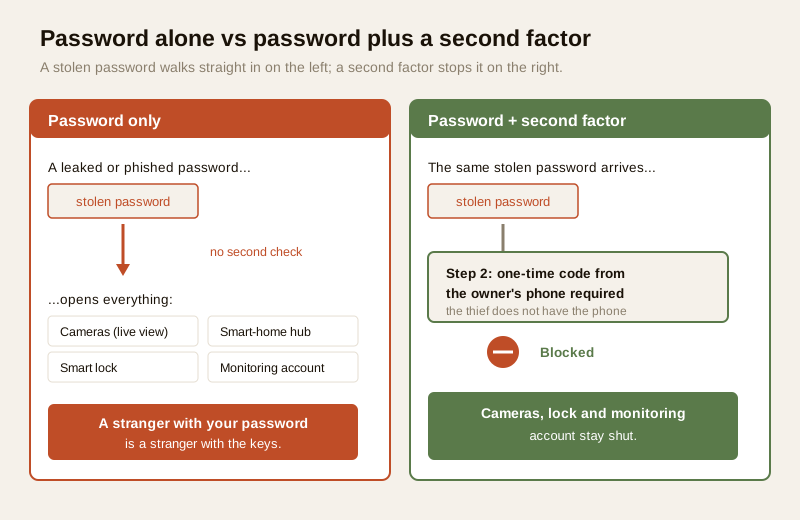
The mental model to keep: a password proves you know a secret; a second factor proves you are really you, right now, on a device you hold. An attacker far away can steal the first. They struggle to steal the second. That gap is your protection.
The factor types, ranked honestly
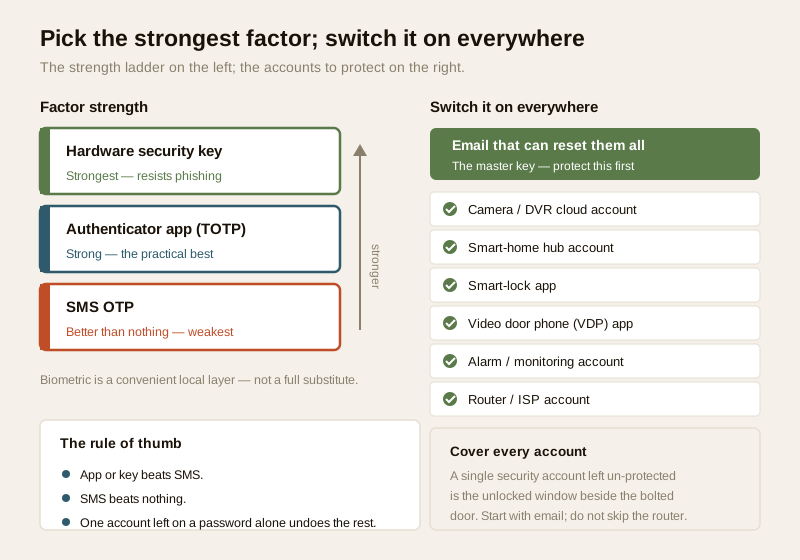
Not all second factors are equally strong. It is important to be honest about this, because the weakest common option — an SMS one-time password (OTP) — is often the only one offered, and it is much better than nothing but weaker than the alternatives. Here is the honest ranking, strongest first.
1. Hardware security key (strongest). A small physical key (it plugs into a USB port or taps by NFC) that proves your identity to the real site and refuses to work on a fake one. Because it is a physical object and is bound to the genuine login page, it resists phishing better than any other factor. It is the gold standard for the accounts that matter most — typically the email that can reset everything. Support for it varies by app, so use it where offered.
2. Authenticator app (TOTP) — the practical best. An app on your phone (a TOTP, or time-based one-time password, app) shows a fresh six-digit code that changes every thirty seconds. The code is generated on your device and never travels over the phone network, so it cannot be intercepted in transit or diverted by taking over your phone number. For most homeowners this is the sweet spot: far stronger than SMS, free, and supported by most reputable security apps. If an app offers an authenticator-app option, choose it over SMS.
3. SMS OTP (better than nothing, but the weak link). A one-time code texted to your phone number. It is convenient and universal, and having it is genuinely better than password-only. But it is the weakest common factor for two reasons worth understanding so you know to prefer something stronger: a text can be diverted if someone convinces your mobile operator to move your number to a new SIM (a SIM-swap), and it depends on the mobile network rather than a secret only your device holds. The takeaway is not a technique — it is a preference: use SMS OTP only when nothing better is offered, and switch to an authenticator app or hardware key the moment one is available.
4. Biometric (a convenient local factor). A fingerprint or face unlock on your phone or a smart lock. Biometrics are excellent as a fast, local convenience — unlocking your phone, or opening the lock app — and they keep a shoulder-surfer from using a glanced PIN. Treat biometric as a smooth local layer that sits on top of a strong account and a proper second factor, not as a replacement for them. On a smart lock it is the everyday convenience; the account behind the app still needs a real password and MFA.
| Factor | Strength | Good for | Honest caveat |
|---|---|---|---|
| Hardware security key | Strongest | The email + your most critical account | Not all apps support it; needs the physical key |
| Authenticator app (TOTP) | Strong — best all-rounder | Every security account that offers it | Needs your phone; keep backup codes |
| SMS OTP | Weak but better than none | When nothing stronger is offered | SIM-swap and interception risk — prefer app/key |
| Biometric | Convenient local factor | Fast unlock of a phone or lock app | A local convenience, not a full second factor |
The rule of thumb: app or key beats SMS; SMS beats nothing; biometric is a convenience on top, not a substitute. You do not need to master any of the underlying technology — you just need to pick the strongest option each account offers.
Where to switch MFA on — every account that can open your home
MFA is only as good as its coverage. One security account left on a password alone is the unlocked window next to the bolted door. Walk through every account that touches your home's security and switch on the strongest factor each one offers. And do not forget the two accounts people always overlook: the router and the email.
- The camera / DVR / NVR cloud account. The account that lets you watch your cameras from your phone is exactly the account a stranger wants. MFA here means a leaked password alone cannot turn your home into a live stream. See CCTV cybersecurity.
- The smart-home hub account. The hub often controls cameras, lights, sensors and sometimes the lock together, so its account is a master switch. Protect it accordingly.
- The smart-lock app. This account can open a door. Give it the strongest factor available and keep biometric as the everyday convenience layer. See smart-lock cybersecurity.
- The video door phone (VDP) app. It sees and often speaks to whoever is at your gate, and may release the door. See video door phone cybersecurity.
- The alarm / monitoring account. Whoever signs in can, in effect, disarm the system. On a disarm-capable account MFA is not optional hygiene — it is the point. See alarm system cybersecurity and remote security monitoring.
- The router and the ISP account. The router is the gate every device passes through; the ISP account can change your broadband settings. Both are routinely left on defaults. Secure the router admin login and the ISP portal — see secure Wi-Fi for security devices.
- The email that can reset all of the above (protect this first). Almost every account offers "reset my password by email." So whoever controls your email can reset — and then take over — every security account you own. Your email is the master key. Put the strongest factor you have on it, ideally a hardware key or an authenticator app, before anything else.
| Where to switch it on | Why it matters | Preferred factor |
|---|---|---|
| Email (do this first) | Resets every other account — the master key | Hardware key or authenticator app |
| Camera / DVR / NVR cloud account | A takeover means a live view of your home | Authenticator app; SMS if that is all there is |
| Smart-home hub account | A master switch over cameras, sensors, lock | Authenticator app |
| Smart-lock app | Can open a door | Strongest offered + biometric for daily use |
| Video door phone (VDP) app | Sees the gate and may release the door | Authenticator app |
| Alarm / monitoring account | Can disarm the system | Authenticator app; app/key over SMS |
| Router / ISP account | The gate every device passes through | Strongest offered; change defaults first |
Recovery: switching MFA on without getting locked out
The one real objection to MFA is the fear of locking yourself out — you change your phone, lose it, or drop it in a bucket of water, and now you cannot get into your own cameras. This fear is reasonable, and the answer is planning, not avoidance. Every good MFA setup gives you a safety net; use it.
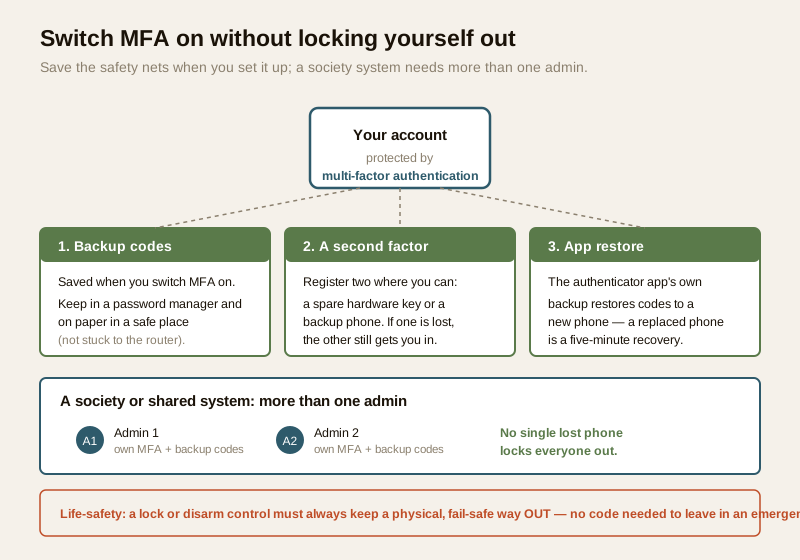
- Save your backup (recovery) codes when you switch MFA on. Most apps show a short list of one-time backup codes at setup. These are your spare key for when your phone is not available. Save them the moment they appear — store them in your password manager, or write them on paper kept somewhere safe (not stuck to the router). Without them, a lost phone can mean a slow, painful recovery through customer support.
- Register a second factor where you can. If an account allows both an authenticator app and a hardware key, or a backup phone, add two. If one is lost, the other still gets you in.
- Keep the authenticator app's own backup working. Reputable authenticator apps can restore your codes to a new phone. Set that up so a replaced phone is a five-minute recovery, not a lockout.
- For a society or shared system, always have more than one admin. This is the quiet failure that traps RWAs: the one committee member who set up the society NVR or gate account leaves, and nobody else can get in. Every shared security system needs at least two named administrators, each with their own MFA and their own backup codes, so no single person's phone is a single point of failure. See password management for the shared-account discipline.
The honest friction-versus-security balance
MFA that is too annoying gets switched off, and an MFA you disabled protects nobody. So aim it where it counts and set it sensibly, rather than making every tap a chore.
- Put MFA on the accounts that matter, not on everything equally. The email, the lock, the alarm, the cameras — these earn a second factor every time. A trivial account you would not mind losing does not need the same rigour. Spend your patience where the stakes are real.
- Use a sensible session length. Most apps let a trusted device stay signed in for a while, so you are not re-entering a code every single time you glance at a camera. A reasonable "remember this device" on your own phone keeps MFA from being annoying enough to disable — while a fresh device, or a sensitive action like adding a user or changing a lock code, should still prompt for the factor. The goal is MFA you keep on, not MFA you fight.
- Match the friction to the risk. A quick biometric to glance at the doorbell feed; a full second factor to add a new user or disarm remotely. Convenience for the everyday, strength for the consequential.
The point of tuning friction is not to weaken protection — it is to keep it switched on. An MFA setup you actually live with beats a stricter one you turned off in irritation after a week.
Shared and family accounts: named logins beat one shared password
Many households run their security on a single shared login — one email and password that the whole family, and sometimes the guard or the help, all use. It is convenient, and it quietly breaks both security and accountability. If everyone uses the same login, MFA lands on one person's phone, the access log cannot tell you who opened the door, and revoking one person means changing the password for everyone.
- Give each person their own named login where the app supports household or family members, each with their own MFA. Now you can remove a departed guard or an ex-tenant without disrupting anyone else, and the log tells you who acted.
- Where only one account exists, put its MFA on a device the responsible household member holds, save the backup codes centrally, and be deliberate about who knows the password. Treat that shared login like the one physical master key it really is.
- Revoke on departure. When someone leaves — staff, a tenant, a former committee member — remove their named access or rotate the shared credential the same day, and confirm they no longer hold a working second factor. This is the digital version of taking the key back.
MFA does not replace your other controls
Multi-factor authentication is powerful, but it is one layer, not the whole wall. It protects the account login. It does nothing about a camera still on its factory-default password, an un-patched hub with a known flaw, or a flat network where a compromised cheap gadget can reach your lock. This is why the pillar guide insists on defence in depth — see the security-system cybersecurity pillar. MFA sits alongside, not instead of:
- strong, unique passwords (password management) — MFA is the second lock, but the first still has to be good;
- current firmware (firmware updates) — MFA cannot fix a known device flaw;
- network segmentation (network segmentation for IoT) and secure Wi-Fi (secure Wi-Fi) — MFA does not stop a device-to-device hop on a flat network.
Think of MFA as one strong plank in a fence. It matters enormously — but a fence needs every plank. Turn MFA on and keep the others, and each covers what the others cannot.
Life-safety: a second factor must never trap anyone
One line overrides every convenience above. A lock or disarm control protected by MFA must never be able to trap a person in an emergency. If a fire alarm sounds, or the power and the internet are both down, nobody should be stuck fumbling for a one-time code to get out of a room or a building. Digital authentication guards the inbound control — signing in remotely, changing settings, opening a door from afar. It must never stand between a person and a physical exit.
So keep this firm: any door on an escape route must retain a mechanical, fail-safe way out that opens by hand, with no app, no code and no network — a thumb-turn, a lever, a manual override. MFA belongs on the account; the exit belongs to physics. If your setup could ever leave someone unable to leave because an authentication step failed, that is not a security feature, it is a hazard, and it needs a licensed professional to correct. Egress always wins.
Key takeaways
- Multi-factor authentication is the second lock on every account that can open your home. A password can be stolen, phished or leaked; a second factor a thief does not physically hold stops them even with your correct password.
- Rank the factors honestly: a hardware security key or an authenticator app (TOTP) is stronger than SMS OTP; SMS is better than nothing but carries SIM-swap and interception risk, so prefer app or key; biometric is a convenient local layer, not a full substitute.
- Switch it on everywhere it matters — the camera cloud account, hub, smart lock, VDP, alarm/monitoring, router/ISP, and above all the email that can reset them all (protect that first).
- Plan recovery so you never lock yourself out: save backup codes safely, register a second factor, keep the authenticator's own backup, and give any society or shared system more than one admin.
- MFA is one layer, not the wall: keep strong passwords, current firmware and network segmentation too — and never let an authentication step stand between a person and a physical, fail-safe exit in an emergency.
Where to go next
- Start at the security-system cybersecurity pillar and the cybersecurity sub-hub.
- Pair MFA with its partner control, password management, then add firmware updates, network segmentation and secure Wi-Fi.
- Apply it device by device: CCTV cybersecurity, smart-lock cybersecurity, video door phone cybersecurity, alarm system cybersecurity and remote security monitoring.
- Gauge your overall exposure with the home-security risk scorecard, then return to the security hub.
References
- Digital Personal Data Protection Act, 2023 — your security accounts hold personal data (footage, access logs, biometrics); protecting the login with MFA is part of the reasonable security a data holder is expected to keep. Treat an account takeover as an incident.
- CERT-In (Indian Computer Emergency Response Team) — India's national incident-response body; treat a security-account takeover as a reportable cyber incident and follow current CERT-In guidance for reporting and response.
- NIST, OWASP and CIS security best-practice guidance — general, vendor-neutral advice on multi-factor authentication, phishing-resistant factors and account hardening; verify the current edition of any framework before relying on it.
- Your device and service documentation — the exact steps to enable MFA, the factor types supported (authenticator app, hardware key, SMS), and how to save and use backup/recovery codes differ by app; follow the maker's own current instructions.
- National Building Code of India (SP 7), Bureau of Indian Standards, and local fire and life-safety bye-laws for any authentication-linked door or lock on an escape route; verify the current edition via the BIS catalogue: https://www.services.bis.gov.in/
This is an educational overview, not legal advice, and it deliberately covers only how to protect accounts you own — never how to attack anyone's account. A lock or disarm control must always keep a physical, fail-safe way out in an emergency; any door on an escape route is a qualified professional's job, and egress always wins. Verify any standard's current status via the BIS catalogue before relying on it.
Export this guide
Related Guides — Deep-dive reading
Complete Guide to Security System Cybersecurity in India (2026): Protecting the Systems That Protect You
The cameras, locks, alarms and door phones you install to feel safer are internet-connected computers that can themselves be attacked, and an insecure one is worse than none. This pillar maps the whole attack surface — devices, network, accounts and data, operations — and points to every guide that hardens it.
SecurityCCTV Remote Access in India (2026): Watch From Your Phone, Safely
How to view your own cameras from anywhere without leaving the front door open to the internet — change the defaults, use strong credentials and 2FA, keep firmware current, prefer the vendor's secure cloud relay or a VPN, segment the camera network, and treat footage as personal data.
SecurityMulti-Factor Access Control in India (2026): Two-Factor Doors, Anti-Passback and Mantraps Done Right
What multi-factor access control means, the three factor categories, common two-factor combinations, and which high-security doors truly need them versus where a second factor just slows honest people down.
SecurityRelated Tools — Try Free
Home Security Risk Scorecard
Score your home across six security layers — perimeter, entry points, lighting, detection, alarm and habits — and get a prioritised action plan.
Security ScorecardCCTV Camera Coverage & Count Calculator
Estimate how many CCTV cameras you need, the NVR channels, storage in TB for your retention period, and an indicative all-in cost with GST.
CCTV CalculatorCCTV Cloud vs Local Cost Calculator
Compare cloud CCTV subscription against a local NVR + HDD — upfront, 5-year total, monthly fee and break-even.
Cloud vs Local