
CCTV Frame Rate Explained (India 2026): How Many FPS You Really Need
What frame rate (fps) actually means, how 12 vs 15 vs 25 vs 30 fps looks on real footage, when motion blur costs you a face or a number plate, and why most Indian homes are perfectly served at 12-15 fps.
Ask most people what makes a CCTV camera "good" and they will say megapixels. But a razor-sharp 8MP camera set to a low, jerky frame rate can still miss the one thing you bought it for — the face at the gate, the two-wheeler that swerved in, the hand that reached for the till. CCTV frame rate is the second half of image quality, and it is the setting most quietly mishandled on Indian systems, because every extra frame you record quietly eats storage, bandwidth and money.
This guide is the focused explainer on frame rate in Studio Matrx's CCTV hub. It sits beside the resolution guide (how many pixels per frame) and the wider image quality guide (sensor, lens and codec) — here we deal only with how many frames per second you actually need, scene by scene.
Scope & safety. This guide helps you choose settings and brief an installer. Running cabling, mounting at height and any mains-electrical work belong to licensed professionals. A camera must never block a window, door or fire-escape route, and higher frame rates capture more detail of people — record only your own property and shared areas, never bathrooms, bedrooms or changing areas, and position cameras to respect neighbours and the spirit of the DPDP Act, 2023.
What frame rate actually is
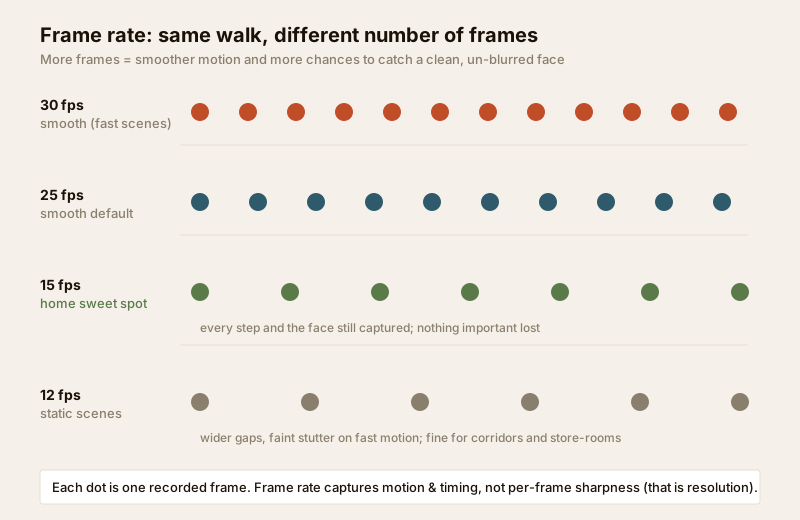
Frame rate, measured in frames per second (fps), is simply how many separate still images your camera captures and records every second. Play those stills back fast enough and your eye reads them as motion — exactly like a flip-book.
- At 30 fps, the camera takes 30 pictures a second. Motion looks smooth and natural; this is what most people mean by "real time".
- At 25 fps, it takes 25 — the European/PAL standard India inherited, and still smooth to the eye.
- At 15 fps, it takes 15 — motion is slightly less fluid but every action is still clearly captured.
- At 12 fps and below, you start to see a faint stutter in fast movement, though people and vehicles are still perfectly identifiable frame by frame.
The key insight: frame rate is about capturing motion, not detail within a single frame. A higher fps does not make a face sharper — it gives you more chances to catch that face in a clean, un-blurred moment as the person moves. Resolution decides how much detail is in each frame; frame rate decides how many frames you get.
How 15 vs 25 vs 30 fps really looks
Here is where marketing misleads. Camera boxes shout "30 fps real-time recording!" as if anything less were broken. In practice, the difference between 15 and 30 fps for a home is far smaller than the difference in storage cost between them.
- 30 fps — buttery smooth. You would choose it for a fast, unpredictable scene where the exact instant matters: a busy shop till, a cash counter, a spot where you might need to prove a precise sequence of hand movements or a fast vehicle's plate.
- 25 fps — visually indistinguishable from 30 for almost everyone. A sensible "smooth" default if your recorder offers it.
- 15 fps — the honest home sweet spot. Watch back footage of someone walking up to your gate at 15 fps and you will see every step, their face several times over, and what they are carrying. Nothing important is lost.
- 12 fps — fine for static or slow scenes: a corridor, a store-room, a back wall, a staircase. People pass through slowly enough that 12 clean frames a second capture them fully.
- Below 10 fps — now you risk a fast subject "jumping" between frames. Reserve very low fps only for near-static views or long-retention archive cameras where storage is the priority.
The honest rule for a home: 12-15 fps is enough almost everywhere, 25-30 fps only where motion is fast and the exact moment could matter.
Motion blur — the real enemy, and why fps alone will not fix it
There is a trap here. People assume a higher frame rate cures motion blur — the smear you see when a moving person or vehicle looks stretched and unreadable. It only half does.
Motion blur is caused by the shutter/exposure time of each frame, not the frame rate. In poor light — an Indian street at night, a dim porch, an overcast monsoon evening — the camera holds each frame's exposure open longer to gather enough light. If the subject moves during that long exposure, that single frame smears, no matter how many frames per second you record. Cranking fps up to 30 in the dark just gives you 30 blurred frames instead of 15.
The fixes for blur are more light (a well-placed lamp), a camera with a larger sensor and wider aperture, and a sensible frame rate — not fps alone. This is why a well-lit 2MP camera at 15 fps often out-performs a dark 8MP camera at 30 fps for catching a moving face. That trade-off is the heart of the image quality guide; pair this page with it.
Fast scenes vs static scenes — match fps to the view
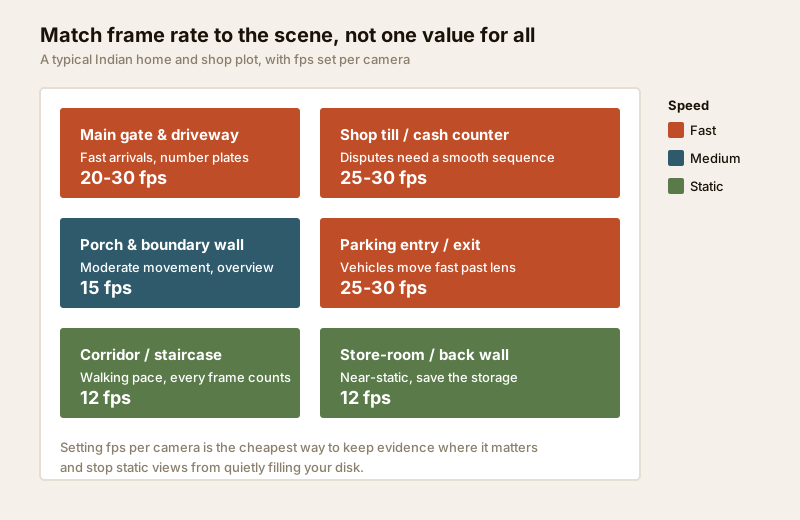
The single best way to save money without losing evidence is to set frame rate per camera, not one blanket value for the whole system. Almost every NVR/DVR lets you do this. Group your views:
Fast scenes — give them the frames (20-30 fps):
- Main gate and driveway — people and two-wheelers arrive and turn quickly; you want a clean frame of the face and, if positioned for it, the number plate.
- Shop till / cash counter — disputes hinge on the exact sequence of a transaction; smoothness is evidence.
- Parking entry / exit — vehicles move fast past the lens; low fps drops the plate between frames.
- Society or building main entrance — high footfall, fast movement, the highest-value view.
Static or slow scenes — save the storage (12-15 fps):
- Corridors, lobbies and staircases — people pass through at walking pace.
- Store-rooms, godowns and back walls — rarely anything moving at all.
- Boundary walls and side setbacks — a deterrent/overview camera, not a fast-capture one.
- A parked car in the porch — mostly a still scene, watched for tampering.
Frame rate x resolution = your real storage bill
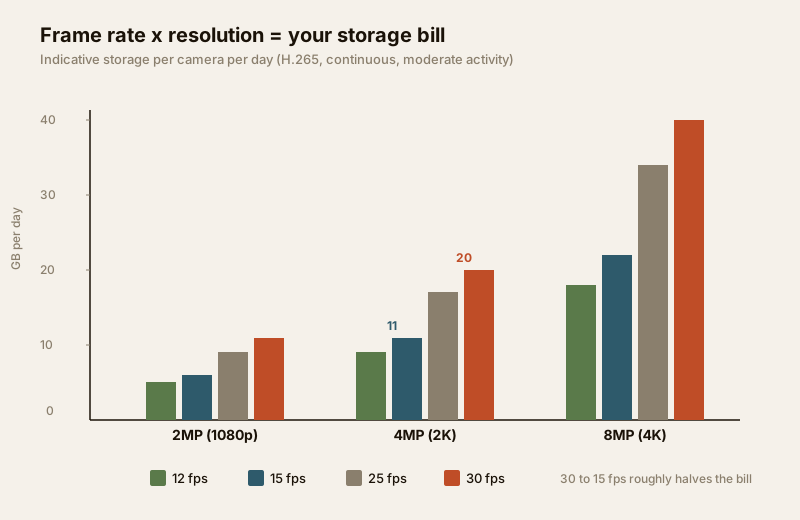
Here is the part quotes never explain. Storage and bandwidth are driven by frame rate multiplied by resolution multiplied by scene complexity, all shaped by the video codec (H.265/HEVC roughly halves the size of the older H.264 for the same quality). Double the fps and you roughly double the data. Jump from 2MP to 8MP and you multiply the data several times over — at the same fps. Do both and the bill explodes.
The table below gives indicative per-camera continuous-recording storage for a single day, using efficient H.265 at moderate scene activity. Treat these as ballparks to sanity-check a quote — real figures swing with brand, bitrate, scene busyness and how much the view moves.
| Resolution | 12 fps | 15 fps | 25 fps | 30 fps |
|---|---|---|---|---|
| 2MP (1080p) | ~5 GB/day | ~6 GB/day | ~9 GB/day | ~11 GB/day |
| 4MP (2K) | ~9 GB/day | ~11 GB/day | ~17 GB/day | ~20 GB/day |
| 5MP | ~12 GB/day | ~14 GB/day | ~22 GB/day | ~26 GB/day |
| 8MP (4K) | ~18 GB/day | ~22 GB/day | ~34 GB/day | ~40 GB/day |
Read the columns, not just the rows. Moving one 4MP camera from 30 fps down to 15 fps saves roughly 9 GB per camera per day — across four cameras over a month that is over a terabyte of disk you did not have to buy, or weeks of extra footage retained on the disk you already own. For a home that keeps 30 days of footage, frame-rate discipline is often the difference between one hard disk and two.
To size this precisely for your own cameras, resolutions and retention days, use the new CCTV storage & bitrate calculator — it turns your fps and resolution choices straight into GB, disk size and monthly upload. If your footage also goes off-site, the same fps choice drives your monthly upload load; the local storage guide covers the on-premise recorder side, and cloud CCTV the bandwidth side.
The bandwidth and upload angle for India
Frame rate is not just a disk question — on any camera that streams to a phone app or to the cloud, fps drives upload bandwidth. Most Indian home broadband and 4G/5G connections (Jio, Airtel and others) have far less upload speed than download. A cluster of 8MP cameras all pushing 30 fps to the cloud can saturate a home upload link, making the live view stutter and slowing everything else on the network.
The same lever fixes it: keep local recording at a modest fps, and if you stream off-site, let the remote/cloud stream run at a lower "substream" fps than the local recording. Nearly every modern IP camera records a mainstream (high resolution, your chosen fps) locally while sending a lighter substream to the app — you rarely need 30 fps on a phone preview.
Frame rate quick-reference by view
| View | Suggested fps | Why |
|---|---|---|
| Main gate / entrance | 20-30 | Fast arrivals; catch face and plate cleanly |
| Shop till / cash counter | 25-30 | Disputes need a smooth, provable sequence |
| Parking entry / exit | 25-30 | Vehicles move fast past the lens |
| Driveway / porch | 15-20 | Moderate movement; a clean face is enough |
| Boundary wall / setback | 12-15 | Overview and deterrent, slow movement |
| Corridor / lobby / stairs | 12-15 | Walking pace; every frame captures the person |
| Store-room / godown / back wall | 10-12 | Near-static; save the storage |
| Night-heavy view (poor light) | 12-15 | High fps in the dark just multiplies blurred frames — fix light first |
Common frame-rate mistakes
- Blanket 30 fps everywhere. The default that quietly doubles your storage bill for no gain on static views. Set fps per camera.
- Chasing 8MP and 30 fps on a budget recorder. The two together overwhelm cheap NVRs and small disks; you end up dropping frames or overwriting footage in days. Pick your battles — high fps where motion matters, high resolution where detail matters, rarely both maxed on the same camera.
- Expecting high fps to beat darkness. It will not. Blur is an exposure problem; fix lighting and the sensor first — see the lighting and visibility assessment.
- Ignoring the codec. Recording in old H.264 instead of H.265 roughly doubles every figure in the table above. Confirm your recorder is set to H.265/HEVC.
When to bring in a professional. You can and should decide the settings — the fps per camera, the resolution, the retention days — yourself using this guide and the storage calculator. Hand the camera mounting at height, cabling, recorder commissioning and any mains-electrical work to a licensed installer, and route the electrical board work to a qualified electrician via the electrical hub. A good installer will happily set per-camera frame rates once you tell them the plan — most only default to 30 fps everywhere because no one asked them not to.
Key takeaways
- Frame rate (fps) is how many images a second your camera records — it captures motion, not per-frame detail, which is resolution's job.
- 12-15 fps is enough for most home views; reserve 25-30 fps for genuinely fast scenes — gates, tills, parking — where the exact moment matters.
- Motion blur is an exposure (light) problem, not a frame-rate one — more fps in the dark just gives you more blurred frames; fix lighting and sensor first.
- Frame rate multiplied by resolution drives your storage and upload bill — dropping a 4MP camera from 30 to 15 fps roughly halves its data; size it with the storage & bitrate calculator.
- Set fps per camera, use H.265, and keep phone/cloud substreams light — and route mounting, cabling and mains work to a licensed professional.
References
- Digital Personal Data Protection Act, 2023 — higher frame rates and resolution capture more identifiable footage; record only your own property and shared areas for a legitimate purpose, and store it securely.
- H.264 (AVC) and H.265 (HEVC) video compression standards — verify your recorder's codec setting on the manufacturer's specification; H.265 typically halves storage for equivalent quality.
- National Building Code of India (SP 7), Bureau of Indian Standards, and local municipal bye-laws for any structural, electrical or life-safety aspect of an install; verify the current edition via the BIS catalogue: https://www.services.bis.gov.in/
This is an educational overview. Storage and bandwidth figures are indicative and vary with brand, bitrate, codec and scene activity. Mounting at height, cabling and any electrical work are qualified professional tasks — engage licensed installers and verify any standard's current status via the BIS catalogue before relying on it.
Export this guide
Related Guides — Deep-dive reading
Data Storage Cost for CCTV in India (2026): Local Disks vs Cloud, and How to Size It
The running cost people forget when they buy cameras. Where the footage actually lives — a one-time surveillance hard disk in the recorder, or a recurring per-camera cloud plan — and how camera count, resolution, frame rate, recording mode and retention days decide how many terabytes, and how much money, you really need.
SecurityCCTV Recording Failure in India (2026): Live View Works but Nothing Was Saved
You open the recorder to pull footage of an incident and there is nothing there, even though every camera shows a crisp live picture. A calm, ordered guide to why an Indian CCTV system records live but saves nothing, and how to fix it before the next incident.
SecurityThe Complete Guide to Parking and Garage Security in India (2026): Access, CCTV, Lighting, People-Safety & Vehicle Protection
The pillar overview of parking and garage security for Indian apartments, offices and homes — how to control who enters, watch every corner, light and de-isolate the space, and protect the vehicles, without ever blocking the escape route or the fire tender.
SecurityRelated Tools — Try Free
CCTV Cloud vs Local Cost Calculator
Compare cloud CCTV subscription against a local NVR + HDD — upfront, 5-year total, monthly fee and break-even.
Cloud vs LocalCCTV Camera Coverage & Count Calculator
Estimate how many CCTV cameras you need, the NVR channels, storage in TB for your retention period, and an indicative all-in cost with GST.
CCTV CalculatorCCTV Storage & Bitrate Calculator
Cameras, resolution, frame rate, codec and retention days to per-camera bitrate, daily footage size, total NVR storage and a suggested disk.
Storage & Bitrate