
CCTV Storage Full in India (2026): Why It Filled Up and Stopped Recording
A disk-full warning on your recorder, or footage that just stopped one day, almost always means one thing: the loop or overwrite setting is off, so the disk filled and halted instead of recycling old footage. A calm, ordered guide to why an Indian CCTV disk fills and stops, and how to fix it.
You sit down at the recorder and there it is: a "HDD Full" or "Disk Full" warning across the screen, or you notice the recording light has gone dark, or playback simply stops on a date some days ago and shows nothing newer. The storage is full, and the system seems to have given up. It feels like the disk is too small, or the whole thing has broken.
Take a breath, because here is the single most important idea in this entire guide, and it fixes the problem more often than anything else. A healthy CCTV system should NEVER truly run out of space and stop. It is designed to LOOP: when the disk fills, it quietly deletes the oldest footage to make room for the newest, and keeps recording forever. So a "full" disk that has HALTED recording almost always means one thing: the loop or overwrite setting has been switched off. Turn it back on and the problem usually disappears. This guide walks the causes in the order you should actually check them, from the most common and easiest to the rarest and hardest.
Scope and safety. This is a diagnostic guide for a homeowner or small facility person with an ordinary DVR or NVR CCTV system. Everything at the top of the list is screen-and-settings work you can safely do with a mouse: reading the disk status page, turning overwrite on, shortening retention, and switching some cameras to motion recording. The one physical job that is not DIY is opening the recorder to swap a hard disk, which belongs to a qualified CCTV technician or your annual maintenance contract. This is not a price or a buying guide, so where a bigger or replacement disk is needed, the numbers belong in the cost library, not here. Recorded footage is personal data under the DPDP Act 2023, so handle any footage carefully and share it only with the police or those who genuinely need it.
First, the one question that decides everything
Before chasing causes, answer a single question, because it splits the whole problem in two:
Has recording actually STOPPED, or is the disk simply overwriting old footage sooner than you would like?
These feel the same at a full disk, but they are completely different situations.
- Recording has stopped. The disk is full and no new footage is being written. Playback has nothing newer than some date. This is a fault, and it almost always means loop or overwrite recording is switched off. This is the case that needs fixing.
- The disk overwrites sooner than you would like. The disk is full, but it IS still recording, quietly recycling the oldest footage. You have the last few days but not last week. Nothing is broken here; this is exactly how a looping system is meant to work. If it is not keeping footage for as long as you need, that is a retention question, covered later.
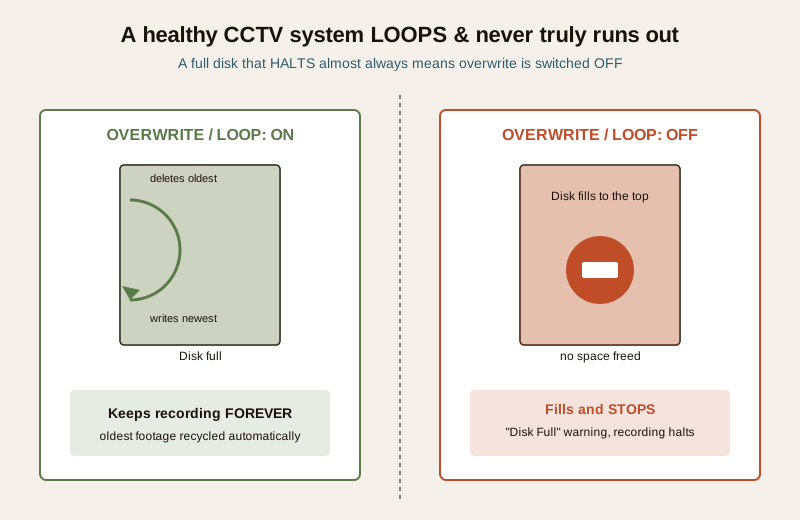
To tell which one you have, look at the playback timeline. If it stops dead at a past date and there is nothing newer, recording has halted, keep reading. If the timeline is full but simply does not go back as far as you would like, the system is looping fine and you only have a retention question; skip to the retention section.
The likely causes, in the order to check them
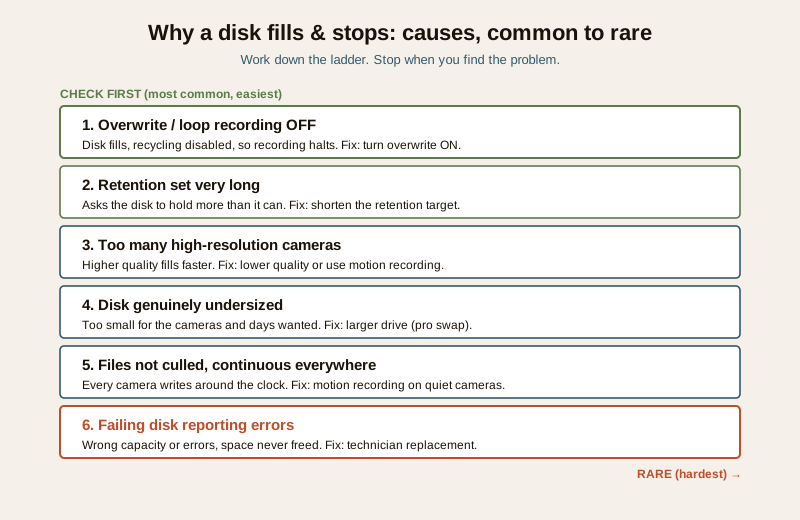
The causes of a full-and-stopped disk line up in a reliable order. The overwrite setting is the culprit far more often than anything else, so it is first. Work down this list and stop when you find the problem.
| Cause | Why the disk fills and stops | The fix |
|---|---|---|
| Overwrite or loop recording OFF | The disk fills and, with recycling disabled, recording simply halts. The single most common cause. | Turn overwrite or loop recording ON |
| Retention set very long | A very long "keep footage for N days" target holds so much that the disk fills before it can recycle | Shorten the retention target so it recycles normally |
| Too many high-resolution cameras | More cameras, or higher resolution and frame rate, fill the disk far faster than expected | Lower quality on less critical cameras, or switch some to motion recording |
| Disk genuinely undersized | The disk is simply too small for the number of cameras and days of footage wanted | Plan a larger surveillance-grade disk (pro for the swap) |
| Files not culled, continuous everywhere | Every camera records continuously around the clock, so nothing is trimmed | Switch quiet cameras to motion recording |
| Failing disk reporting errors | A dying drive reports wrong capacity or errors, so space is never freed correctly | Technician diagnosis and a surveillance-grade replacement |
The diagnostic path, step by step
Follow this in order. Each step tells you where to go next.
Step 1 — Check the overwrite or loop setting first
This is where the answer almost always is. Open the storage or recording menu on the recorder. Depending on the brand, the setting is called "Overwrite", "Loop Recording", "Cyclic Recording", "Recycle", or "Auto Overwrite".
- If overwrite or loop recording is OFF, you have found it. Turn it ON. The recorder will now recycle the oldest footage automatically whenever the disk fills, and recording will resume and continue indefinitely. This one setting is by far the most common reason a system "stopped recording" weeks ago without anyone noticing.
- If it is already ON, the disk should be looping and not truly halting. If recording has genuinely stopped anyway, that points to a disk problem; move to Step 4. If it is looping but not keeping footage long enough, that is retention; go to Step 2.
Step 2 — Check the retention target and how fast it fills
Look at whether a retention target is set, that is, a "keep footage for N days" or "storage days" figure. A very long target can, on a small disk, ask the system to hold more than it physically can, filling it and, on some recorders, stalling.
- If retention is set very long, shorten it to something the disk can comfortably hold, and let the system recycle normally. It is better to reliably keep a realistic number of days than to ask for thirty and get an error.
- Note how fast the disk fills. If it fills in a day or two, the cameras are simply writing more than the disk can hold, which is the next two steps.
Step 3 — Review the cameras and the recording mode
How fast a disk fills is decided by three things: how many cameras you run, the resolution and frame rate of each, and whether they record continuously or only on motion. More cameras or higher quality means the disk fills faster.
- Too many high-resolution cameras filling the disk quickly can be eased by lowering the resolution or frame rate on the less critical cameras. The gate and front door can stay high; a quiet back corridor rarely needs full resolution and full frame rate.
- Everything on continuous recording wastes space on empty scenes. Switch quiet cameras to motion recording so they only write when something happens. Be sensible: the most important cameras can stay continuous, but a still store-room or a rarely-used side gate is a good candidate for motion.
- After any change, note whether the disk now fills more slowly. Balancing all of this is exactly what the CCTV storage maintenance guide is for.
Step 4 — If overwrite is ON but it still stopped, check disk health
If loop recording is on, retention is reasonable, and the disk still fills and halts or shows errors, the disk itself may be failing. Open the storage or HDD status page.
- A drive that reports a wrong capacity, an abnormal or error status, or that repeatedly needs re-initialising is failing and cannot free space correctly. That is a technician job: a diagnosis and, usually, a surveillance-grade replacement. The physical swap is not DIY; it means opening the recorder. This overlaps with a broader recording fault, covered in the CCTV recording failure guide.
The retention question: it loops fine, but not for long enough
If the disk is full but still recording, nothing is broken. The disk is simply recycling old footage sooner than you would like. Retention, how many days of footage you keep, is decided by the size of the disk, how many cameras you run, and the recording quality and mode. If you assumed thirty days and the reality is four, you will lose footage of a slow-to-surface incident every time.
To lengthen retention you can lower resolution or frame rate on less critical cameras, switch some channels to motion recording so they consume less, or plan a larger surveillance-grade disk. The CCTV storage maintenance guide covers sizing this properly, and the security system troubleshooting pillar collects the wider set of faults.
Safe DIY versus when to call a professional
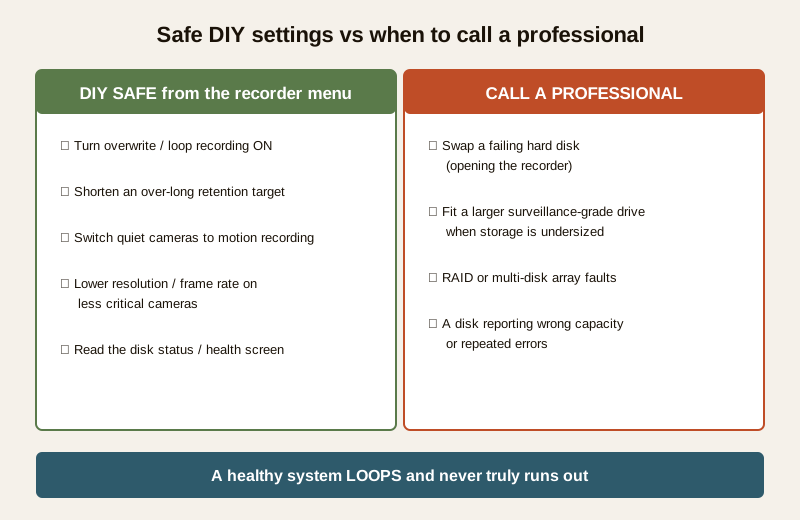
Everything at the top of the causes list is screen work you can do from the recorder menu with a mouse. The professional line begins the moment the recorder box has to be opened or a disk has to be replaced.
Safe to do yourself:
- Turn overwrite or loop recording ON, and leave it on.
- Shorten an over-long retention target so the disk can recycle normally.
- Switch quiet cameras to motion recording to save space.
- Lower the resolution or frame rate on less critical cameras.
- Read the disk status and health screen.
Call a qualified CCTV technician or your maintenance contract for:
- Replacing a hard disk that is failing, reporting errors, or the wrong capacity. This means opening the recorder and choosing the right drive.
- Fitting a larger surveillance-grade disk when the storage is genuinely undersized for the cameras and days of footage you want.
- Any RAID or multi-disk recorder where a disk has dropped out of the array.
On hard disks, one plain warning. Many "disk full" and "stopped recording" calls in India trace back to an ordinary desktop computer hard drive fitted to save money, which then struggles or dies under the relentless 24x7 write load a CCTV recorder puts on it. Surveillance is not the same duty as a home PC. When a disk is replaced, it should be a surveillance-rated drive built for continuous writing. That is a technician conversation, but it is the single biggest thing that stops storage faults from coming back. The wider maintenance routine lives in the NVR and DVR maintenance guide.
Prevention: so the disk never silently stops again
The whole trap of a full disk is that, with overwrite off, you learn about it weeks too late. The cure is a couple of habits.
- Turn overwrite or loop recording ON and leave it on, so a full disk recycles instead of halting. This alone prevents the most common version of this fault.
- Know your true retention in days, and make sure it comfortably exceeds how long an incident might take to come to light. Size the storage for that, not by hope.
- Verify recording every month. Do not assume. Once a month, open playback and confirm yesterday's footage is there for every camera. A system that "looks fine" on live view can have quietly stopped writing.
- Back up anything important the moment you have it. Once you have footage of a real incident, export it off the recorder so it can never be recycled or lost with the disk. The security system backup guide covers doing this properly.
The two-minute storage health check
- Open the storage menu and confirm overwrite or loop recording is ON.
- Confirm the record schedule is enabled and covers the whole day for every camera.
- Open playback and confirm the last day of footage exists for each camera.
- Confirm the disk status shows a normal, healthy state, not an error or wrong capacity.
- Export one recent clip to confirm you can actually get footage OUT of the system.
A full disk feels like a broken system, but it is one of the most fixable faults in CCTV, and usually a free one-setting fix. The rule to remember is simple: a healthy system loops and never truly runs out. If yours filled and stopped, start with the overwrite setting. For the full library, the CCTV hub, the troubleshooting hub, and the security hub collect the related guides.
Export this guide
Related Guides — Deep-dive reading
CCTV Recording Failure in India (2026): Live View Works but Nothing Was Saved
You open the recorder to pull footage of an incident and there is nothing there, even though every camera shows a crisp live picture. A calm, ordered guide to why an Indian CCTV system records live but saves nothing, and how to fix it before the next incident.
SecurityCCTV Storage Maintenance in India (2026): Keeping the Footage There When You Need It
Surveillance storage is a wear item that fails silently. This professional guide covers checking disk health, verifying recordings actually exist for the full retention window, planning drive replacement before failure, keeping a spare, and holding an off-site backup so a dead or stolen recorder is not total loss.
SecurityData Storage Cost for CCTV in India (2026): Local Disks vs Cloud, and How to Size It
The running cost people forget when they buy cameras. Where the footage actually lives — a one-time surveillance hard disk in the recorder, or a recurring per-camera cloud plan — and how camera count, resolution, frame rate, recording mode and retention days decide how many terabytes, and how much money, you really need.
SecurityRelated Tools — Try Free
CCTV Camera Coverage & Count Calculator
Estimate how many CCTV cameras you need, the NVR channels, storage in TB for your retention period, and an indicative all-in cost with GST.
CCTV CalculatorNVR Channel Calculator
What size recorder a system needs with room to grow, plus a check on its incoming bandwidth.
NVR ChannelsBefore vs After — Cost Reality Check
Compare what you expected to pay vs what you actually paid, category by category.
Reality Check