

Security Mobile App Not Connecting in India (2026): View Your Cameras and Locks Again
Your camera or smart-lock app is stuck loading, shows the device offline, or will not let you view a live feed remotely. A calm, ordered path from your phone, to your home internet, to the app and the account, with clear safe DIY steps and when to call the installer.
You open the app to check on the house, and nothing loads. A spinner turns and turns. The camera says "offline". The live view is a grey box. The smart lock will not respond to a remote unlock. It feels, in the moment, like your security has failed.
Here is the reassuring truth to hold onto first: the app is only the remote window onto your system, not the system itself. Your camera is almost certainly still recording to its card or box at home; your alarm is still armed; your lock is still locked. What has broken is your ability to see and control it from a distance — and that is very often a problem with your phone, your internet or the app, not with the security device at all. An app problem is rarely a security problem. So take a breath, and let us walk it back calmly from the most common, easiest cause to the rare, hard one.
Scope and safety. This is a diagnostic guide for a homeowner whose security app will not connect. The safe do-it-yourself steps here are limited to your phone, your app, your account and power-cycling equipment you can reach. Anything involving router port settings, P2P configuration, a device that refuses to come back online, or working at height to reach a mounted camera belongs to your installer or your AMC technician. This is not a price or a buying guide — for whether to repair or replace ageing hardware, follow the cost and lifecycle links. Your app streams footage of your home, which is personal data under the DPDP Act 2023, so treat your login as seriously as your bank's.
Start here: is it the app, or is it the device?
The single most useful thing you can do before touching any setting is to answer one question: is the device itself online, or is only the app failing to reach it? The answer sends you down completely different paths.
- If the device shows online on the local recorder or on your home Wi-Fi but the app cannot reach it, the break is somewhere between your phone and your home — your phone's internet, the account or cloud service, or the P2P connection.
- If the device is offline everywhere — not on the recorder, not on the app, not on the local network — then the device has lost its own network or power at home, and the app is simply the messenger.
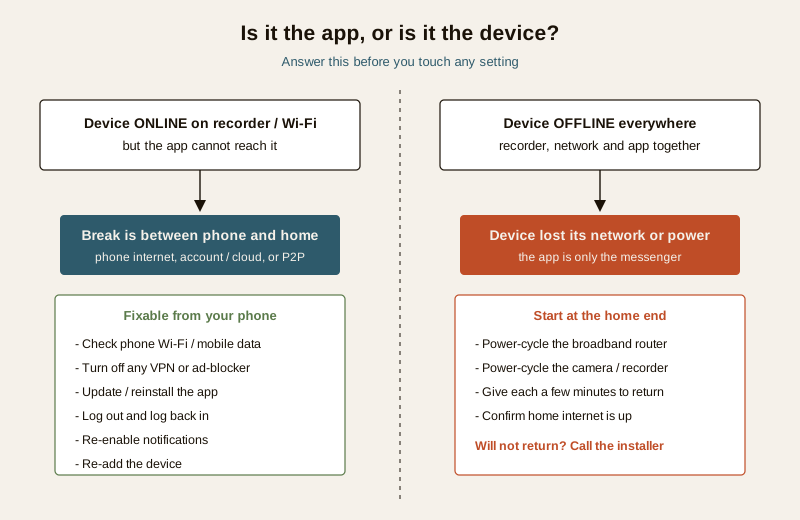
If you are at home, you can check this directly: open the recorder's own screen or connect your phone to your home Wi-Fi and see whether the live view works on the local network even when remote viewing does not. If you are away, you cannot see the recorder — so work through the causes below in order, because the common ones are the ones you can fix from your phone anyway.
Likely causes, most common first
Ninety percent of "app not connecting" problems are near the top of this list — the cheap, quick, phone-side ones. Work down it in order and stop as soon as one fixes it.
| Cause | Why it happens | First fix |
|---|---|---|
| Your phone's internet is off or weak | Mobile data or Wi-Fi disabled, poor signal, flight mode left on | Check your phone can open a normal website; toggle Wi-Fi and data |
| A VPN or ad-blocker on your phone | A VPN reroutes traffic and can block the camera's P2P connection | Turn the VPN off and retry |
| Your home internet is down | Broadband or router outage means the device is offline and unreachable | Power-cycle the router; confirm home internet works |
| The app needs an update or has logged you out | An old app version or an expired session token stops it connecting | Update the app; log out and log back in |
| App cache, permissions or notifications broke | A phone OS update or stale cache can disable permissions the app needs | Re-grant permissions and notifications; clear cache or reinstall |
| Account or cloud service issue | Password changed on another phone, cloud or P2P server outage, device unbound | Re-login; check the vendor's status; re-add the device |
| Router change broke P2P or ports | A new router or reset lost the settings the device needs to be reachable | Installer reconfigures the network and re-links the device |
| Device time, date or firmware | A wrong clock or stale firmware can drop the cloud connection | Correct time; update firmware, or have the installer do it |
The ordering is deliberate: power, connections and settings first; the device's own hardware last. You will very rarely reach the bottom rows.
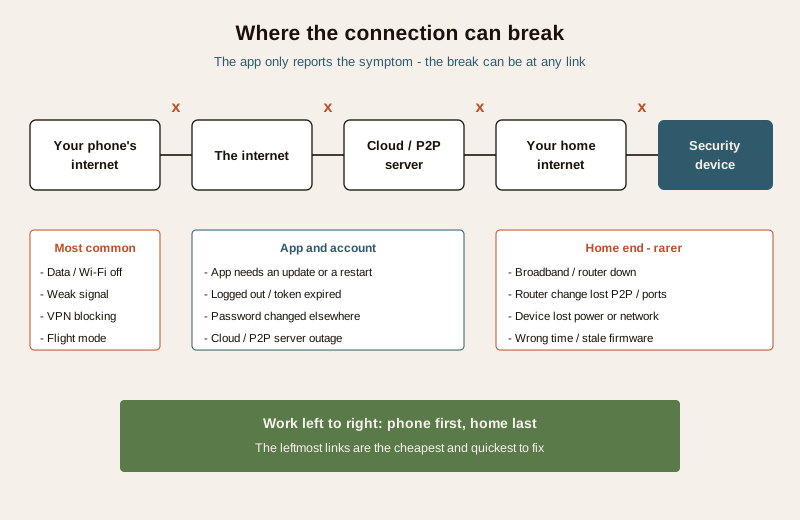
The diagnostic path
Follow this as a decision tree. Each step either fixes the problem or narrows down where it is.
1. Check your phone's own internet. Can you open a normal website or a chat app right now? If not, the problem is your phone, not your security system. Toggle Wi-Fi off and on, toggle mobile data, and turn off flight mode. A weak signal is enough to break a live video stream even when messages still send.
2. Test Wi-Fi versus mobile data. Switch your phone from Wi-Fi to mobile data (or the reverse) and try the app again. If it works on one but not the other, the fault is in that network — a home Wi-Fi issue, or a data-saver or VPN blocking the connection.
3. Turn off any VPN or ad-blocker. These commonly break the peer-to-peer connection cameras use. Disable them and retry before anything else.
4. Is only this app affected, or everything? If every app on your phone is struggling, fix the phone's internet first. If only the security app fails while everything else is fine, move to the app steps.
5. Update, then restart the app. Check the app store for an update, install it, then fully close and reopen the app. An out-of-date app is one of the most common single causes after a phone OS update.
6. Log out and log back in. An expired session token quietly stops the app connecting. A clean re-login refreshes it. Have your password ready — if you changed it on another device, that is likely the whole problem.
7. Re-check permissions and notifications. A phone update can silently switch off the app's network, background or notification permissions. Re-enable them in your phone's settings.
8. Reinstall as the reset button. If the app still will not connect, uninstall and reinstall it, then log in fresh. This clears corrupted cache and stale tokens in one move.
9. Power-cycle the router, then the device. If the device is offline everywhere, unplug your broadband router for thirty seconds and let it fully come back, then power-cycle the camera or recorder. Give each a few minutes to reconnect.
10. Re-add the device. As a last homeowner step, remove the device from the app and add it again fresh. If it re-adds and works, you are done. If it refuses to come online no matter what, the trail now points at the device or the network — call the installer.
If, after all this, the device is online on your home network but simply unreachable from outside, or it will not come online at all, you have crossed from a DIY problem into an installer one. That is not a failure on your part — it is where the safe line sits.
Safe DIY versus call the installer
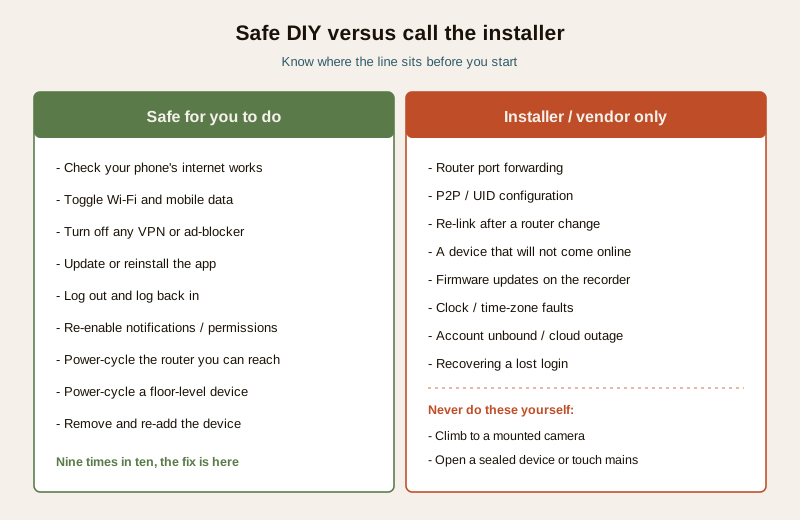
Safe for you to do:
- Check and fix your phone's internet; toggle Wi-Fi and mobile data.
- Turn off a VPN, data-saver or ad-blocker and retry.
- Update, restart, or fully reinstall the app and log in again.
- Re-enable the app's notifications and permissions.
- Power-cycle the broadband router and any camera, recorder or hub you can reach at floor level.
- Remove and re-add the device in the app.
Call your installer, AMC or the vendor for:
- Router port forwarding or P2P configuration — especially after you changed or reset your router, which is a classic cause of "was working, now offline". This overlaps with a home security-system network failure.
- A device that will not come back online on the local network however many times you power-cycle it.
- Firmware updates on the recorder or camera, and clock or time-zone faults, if you are not comfortable doing them.
- Account problems — a device unbound from your account, a suspected cloud-service outage, or a login you cannot recover. Vendor support owns these.
Do not climb a ladder to reach a mounted camera, and do not open a sealed device or touch mains wiring. Those are the installer's job, every time.
When it is not the app at all
Sometimes the app is telling the truth, and the device really is the problem. A few pointers on where to go next:
- If a specific camera shows persistently offline while the rest of the system is fine, it is likely that one camera's power or cable, not the app — see camera offline in India.
- If several devices dropped together, suspect the shared network or the router — the security-system network failure guide walks that.
- If live view works but saved cloud clips will not play or upload, that is a storage-side issue — see cloud recording failure.
- If your whole way of checking on the house remotely feels fragile, the remote security monitoring guide covers building it on a stable footing.
For any symptom this guide does not cover, start from the security-system troubleshooting pillar, browse the wider troubleshooting library, or return to the security hub.
Prevention: so the spinner does not come back
- Keep the app and the device firmware updated. Turn on automatic app updates, and let the installer apply firmware during a service visit. Most sudden "stopped connecting" events trace back to a version mismatch.
- Give the device a stable internet path. A camera on a weak edge-of-house Wi-Fi signal will drop out repeatedly; a wired connection or a nearer access point ends most of it.
- Save your login and know your password. Store the app credentials somewhere safe so a routine re-login is a ten-second fix, not a lockout.
- After any router change, expect to re-link. A new router, a reset or a changed Wi-Fi password will orphan the device — plan for the installer to reconnect it rather than being surprised.
- Protect the login itself. Because the app streams footage of your home, use a strong, unique password and turn on multi-factor authentication if the vendor offers it. Under the DPDP Act 2023 that footage is your personal data, and a weak app password is the easiest way for it to leak.
The two-minute checklist
- Does your phone open a normal website? Toggle Wi-Fi and data.
- VPN or ad-blocker off?
- App updated, closed and reopened?
- Logged out and back in?
- Notifications and permissions on?
- Router and device power-cycled?
- Still stuck? Re-add the device, then call the installer.
An app that will not connect is, nine times in ten, a two-minute fix that never touched your actual security. Work the list in order, keep calm, and the window opens again.
Export this guide
Related Guides — Deep-dive reading
Security System Network Failure (2026): When Everything Goes Offline at Once, and How to Get It Back
When your whole security system drops offline together, the fault is almost never in the cameras. It is in the shared network they all lean on. This guide helps an Indian homeowner tell an internet outage from a router, switch or cabling fault, power-cycle things in the right order, and know when to call a professional.
SecurityCCTV Recording Failure in India (2026): Live View Works but Nothing Was Saved
You open the recorder to pull footage of an incident and there is nothing there, even though every camera shows a crisp live picture. A calm, ordered guide to why an Indian CCTV system records live but saves nothing, and how to fix it before the next incident.
SecurityCCTV Remote Access in India (2026): Watch From Your Phone, Safely
How to view your own cameras from anywhere without leaving the front door open to the internet — change the defaults, use strong credentials and 2FA, keep firmware current, prefer the vendor's secure cloud relay or a VPN, segment the camera network, and treat footage as personal data.
SecurityRelated Tools — Try Free
CCTV Camera Coverage & Count Calculator
Estimate how many CCTV cameras you need, the NVR channels, storage in TB for your retention period, and an indicative all-in cost with GST.
CCTV CalculatorCCTV Cloud vs Local Cost Calculator
Compare cloud CCTV subscription against a local NVR + HDD — upfront, 5-year total, monthly fee and break-even.
Cloud vs LocalSecurity System Cost Estimator
Estimate the all-in capex with GST, annual running cost and 5-year total cost of ownership of a home or building security system.
Cost Estimator