
Security System Network Failure (2026): When Everything Goes Offline at Once, and How to Get It Back
When your whole security system drops offline together, the fault is almost never in the cameras. It is in the shared network they all lean on. This guide helps an Indian homeowner tell an internet outage from a router, switch or cabling fault, power-cycle things in the right order, and know when to call a professional.
Everything is offline. Not one camera, not the doorbell alone, but the whole lot at once, every tile in the app grey, the recorder unreachable, the live view a wall of spinning loaders. It looks like a disaster, as if the entire security system has failed together in the night. Take a breath, because that "all at once" is actually the most reassuring clue you could have. When a single camera drops, the fault is usually in that camera. When everything drops together, the cameras are almost certainly fine, and the fault is in the one thing they all share: the network. Routers, switches and internet lines are cheaper, simpler and faster to fix than a shed full of cameras, and most of the time you can bring the whole system back yourself in a few minutes.
The single most useful idea in this guide is that a security system is a chain of devices hanging off a shared network, and a shared fault knocks them all down at the same moment. So the job is not to touch the cameras at all. It is to work along that shared network, the internet line, the router, the switch that feeds the cameras, the cabling, and find the one weak link. If your trouble is really just one device that went quiet, this is the wrong guide: see camera offline for a single dropped camera. This guide is for when the whole system disappears together, and for the broader map of every kind of fault, the security system troubleshooting pillar sits above it all.
Scope and safety. This is a diagnostic guide for homeowners, not an installation manual. The fixes here are the safe ones: power-cycling a router, a network switch or a recorder at an accessible plug, checking whether your broadband is down, checking Wi-Fi, looking for a tripped switch, and re-seating an accessible network cable. Anything involving mains or electrical wiring, opening a switch, re-running or re-terminating cable, working at height, or re-configuring IP addresses and subnets belongs to a qualified technician or your AMC, not to you. This is not a price or a buying guide; for "repair or replace" and what a part costs, defer to the cost and lifecycle guides. Your footage and app login are personal data under the DPDP Act 2023, so treat the recordings and the account with care.
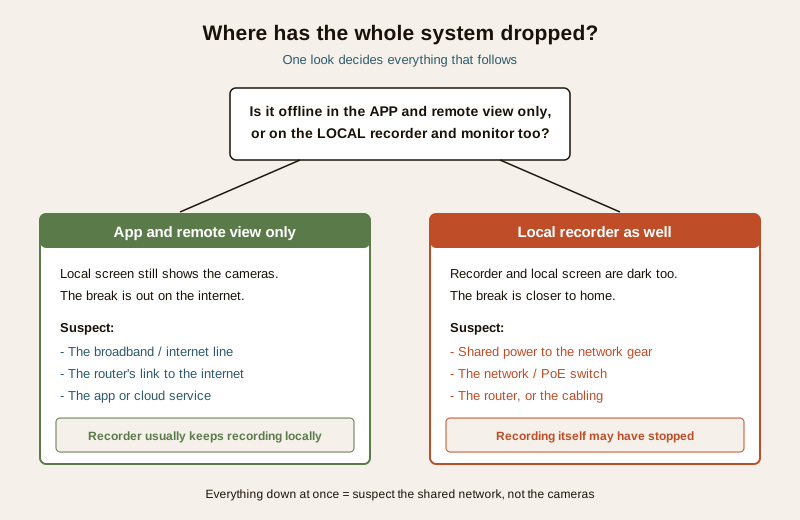
The one question that splits the whole problem
Before you touch a single plug, answer one question, and it decides everything that follows.
Is the system offline only in the app and remote view, or is it offline on the local recorder and monitor too?
If you can walk up to the NVR or DVR, or its local monitor or TV, and still see the cameras there, then the cameras and your home network are working perfectly. Your recorder is very probably still recording every second, exactly as it should. What has broken is only the path out to the internet and the cloud, so remote and app viewing fail while everything at home carries on. That is an internet or router problem, and your footage is safe.
If, on the other hand, the recorder and the local screen are dark or unreachable too, the break is closer to home and more serious for recording: the shared power to the network gear, the switch that feeds the cameras, the router itself, or the cabling between them. This is the case where recording may actually stop, so it is the one to move on quickly.
The likely causes, most common first
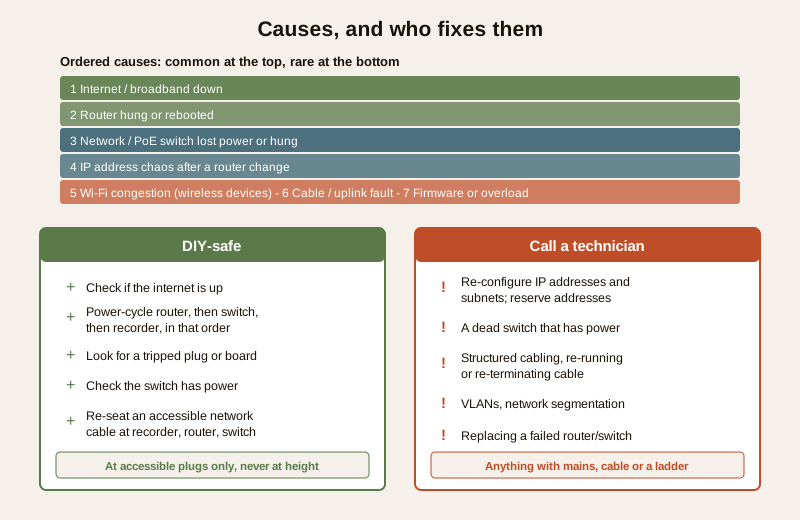
A whole-system outage has a short, well-worn list of causes, and they fall in a reliable order from the everyday to the rare. Work down it and you will usually land on the answer at an accessible plug, never on a ladder.
| Cause | Why it takes the whole system down | The fix |
|---|---|---|
| Internet or broadband down | The line to your ISP is out, so only remote and cloud viewing fail; local recording carries on | Check the modem lights and any other device; wait for the ISP or call them; nothing to fix on the cameras |
| Router hung or rebooted | The router restarted after a power cut, or simply froze; every device lost its shared connection at once | Power-cycle the router cleanly; give it a few minutes to bring everything back |
| Network switch or PoE switch lost power or hung | The switch that feeds all the cameras their network, and often their power, went off or froze, so they all vanish together | Check the switch has power; power-cycle it; look for a tripped plug point |
| IP address chaos after a router change | A new or swapped router handed out new addresses, or two devices clashed on one, so the recorder can no longer find the cameras | Power-cycle everything in order; if it persists, a technician re-architects the addresses |
| Wi-Fi congestion or interference | For wireless devices, a crowded or overloaded Wi-Fi band drops several of them together at busy hours | Reduce load, use the right band, move the router; wire the important cameras |
| A cable or uplink between the recorder and the router or switch | The single cable joining the recorder to the network, or the switch to the router, came loose or failed, so the whole system falls off the network | Re-seat an accessible cable; a damaged run is a technician's job |
| Firmware fault or overload | A buggy firmware or an overloaded recorder or switch keeps rebooting, so the whole system drops in and out | Update firmware; reduce load; call a technician if it persists |
Notice the shape of that list. The top of it, the internet, the router, the switch, is common, cheap and squarely in your hands. The bottom, IP re-architecture, a failing switch, is rarer and often a technician's job. Start at the top and work down, and stop the moment the system returns.
The diagnostic path, step by step
Follow this in order, and stop as soon as the system comes back.
Step 1 — If only the app is offline, check your internet first
If the recorder still shows the cameras on its local screen but the app says everything is offline, your cameras are fine and recording; only the way out to the internet is broken. Open any website or another app on your phone over the same home Wi-Fi. If nothing loads, your broadband is down, and that is your whole answer: check the modem or ONT lights, wait for the line to return, or call your ISP. The system will reconnect on its own once the internet is back, and it kept recording locally the entire time. For making that remote link reliable in the first place, see internet and network readiness for security.
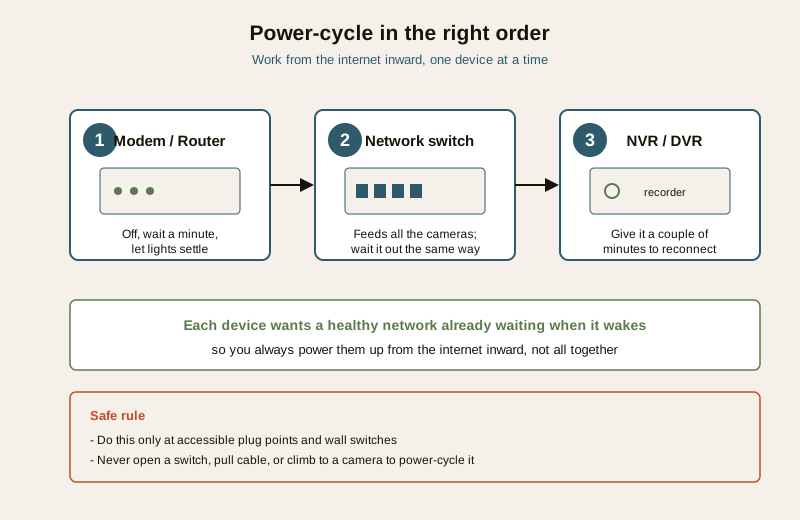
Step 2 — Power-cycle in the right order: modem or router, then switch, then recorder
This is the single most effective fix for a whole-system outage, and it is a safe one, done only at accessible plug points. The order matters, because each device waits for the one before it. Switch off the broadband modem or router, wait a full minute, switch it back on, and let it settle for two or three minutes until its lights are steady. Then power-cycle the network switch that feeds the cameras the same way. Only then power-cycle the recorder, the NVR or DVR, and give it a couple of minutes to bring the cameras back up one by one. Working from the internet inward means each device finds a healthy network waiting when it wakes. A great many "everything died" outages never come back after a clean reboot in this order.
Step 3 — Look for a tripped plug or a dead switch
If the reboot did not help and the system is offline on the local recorder too, check that the shared network gear actually has power. A single tripped plug point, a switched-off board, or a failed adaptor on the network switch can take every camera down at once, because they all draw their network, and often their power over the same cable, from that one switch. Check that the switch's power light is on and its plug is firm in a live socket. Do not open the switch; if it has power but is dead, that is a technician's replacement, not a home repair.
Step 4 — If the router was just changed, suspect address chaos
If all this started right after the internet company swapped your router, or you fitted a new one, the cause is very likely the addresses. A new router hands out its own set of network addresses, and the recorder and cameras may still be looking for the old ones, or two devices may now clash on the same address. A full power-cycle in the order above sometimes lets everything sort itself out. If it does not, this is where the safe home path ends: re-setting the addresses, reserving them, or re-architecting the little network is a configuration job for your installer, not a homeowner setting.
Step 5 — Re-seat the one cable that joins it all to the network
A whole security system usually hangs off the wider network by a single cable: the one from the recorder to the router or switch, or the uplink from the camera switch to the router. If that one link comes loose, the entire system falls off the network together even though every camera is healthy. If you can safely reach the plug ends at the recorder, the router or the switch, gently check they are firmly seated and click them home. Do not pull, re-run or re-terminate any cable, and never chase a cable up to a camera at height; a damaged run is a technician's job. For the recorder that ties it all together, routine care is covered in NVR and DVR maintenance.
What you can safely do, and what to hand over
The line between a safe home fix and a technician's job is the same line you would draw for any electrical, cabling or at-height work.
Safe to do yourself:
- Check whether the internet is up, and whether the outage is only in the app or on the local recorder too.
- Power-cycle the router, the network switch and the recorder, in that order, at accessible plug points.
- Check for a tripped plug or a switched-off board feeding the network gear.
- Check the network switch has power and its light is on.
- Re-seat an accessible network cable at the recorder, router or switch, firmly and gently.
Call a qualified technician or your AMC for:
- Re-configuring IP addresses and subnets, reserving addresses, or any address chaos that a reboot will not clear.
- A network switch or PoE switch that has power but stays dead, or any opening of that equipment.
- Structured cabling faults, or re-running, re-terminating or repairing any cable, especially up at a camera.
- Setting up VLANs or segmenting the security network from the home network.
- A router or switch that has genuinely failed and needs replacing.
When to stop and call for help. If the safe steps have not brought the system back, the honest and safe move is to call your installer or AMC rather than open a switch, pull cable or climb. A system that keeps dropping wholesale, an outage that began right after a router change and will not clear, or a switch that has power but is dead, is telling you the fixed network needs a professional eye. There is no shame in that call; there is real risk in the wiring and the ladder. If your system also protects against fire or an alarm panel is part of the same network, never leave a life-safety function disabled to stop a fault: a persistent fault must be diagnosed and restored by a competent person, not silenced.
Preventing the next outage
Most whole-system outages are preventable, and the same measures make the network steadier every day.
- Put the router, the switch and the recorder on a UPS. This is the single biggest improvement. A small uninterruptible power supply keeps the whole shared network alive through the short power cuts and voltage dips that otherwise send everything offline at once, and lets the system ride out a blip instead of all rebooting together.
- Give the important cameras a wired backbone. A wired or PoE camera on a solid switch does not drop when Wi-Fi gets crowded. The cameras you most rely on deserve the steadiest connection there is.
- Ask your installer to reserve fixed addresses. Reserved or static addresses for the recorder and cameras mean a router reboot or a busy network cannot hand out clashing addresses and lose the cameras. It is a one-time setup that prevents the classic "offline after a router change" outage.
- Choose a reliable router and do not overload it. A cheap, overloaded router that hangs every few days will take the whole system with it each time. A capable router, and not hanging too many devices off one small switch, keeps the shared network calm.
- Keep firmware current on the router, switch and recorder. Up-to-date firmware fixes the bugs that cause random reboots and drop-outs.
A quick whole-system-offline checklist
- Is it offline in the app only, or on the local recorder too? App only usually means the internet, and recording continues.
- Everything at once? Suspect the shared network, not the cameras.
- Check the broadband first; the modem lights and any other device tell you.
- Power-cycle the router, then the switch, then the recorder, in that order.
- Look for a tripped plug or a dead switch feeding the network gear.
- Did the router just change? Suspect address chaos; a technician re-sets it.
- Re-seat an accessible cable; hand cabling, IP work and dead switches to a professional.
A whole security system that drops offline together is, far more often than not, a network waiting to be woken rather than a system that has failed. Answer the one question at the top, work along the shared network from the internet inward, power-cycle in order, do only the safe fixes, and hand the cabling and the configuration to a professional. For the broader map of security faults and where this one sits, return to the security system troubleshooting pillar and the wider security hub. Through most of an internet outage your recorder kept recording quietly at home; now let us get you watching it again.
Export this guide
Related Guides — Deep-dive reading
Security Mobile App Not Connecting in India (2026): View Your Cameras and Locks Again
Your camera or smart-lock app is stuck loading, shows the device offline, or will not let you view a live feed remotely. A calm, ordered path from your phone, to your home internet, to the app and the account, with clear safe DIY steps and when to call the installer.
SecuritySecurity System Troubleshooting in India (2026): The Calm Diagnostic Method
When a camera goes dark, an alarm keeps crying wolf, or the app says offline, most faults are simple and cheap to fix. This master guide teaches the ordered diagnostic method that ties the whole troubleshooting library together, plus the safe reset ladder and the line between a two-minute DIY fix and a call to a professional.
SecurityCCTV Recording Failure in India (2026): Live View Works but Nothing Was Saved
You open the recorder to pull footage of an incident and there is nothing there, even though every camera shows a crisp live picture. A calm, ordered guide to why an Indian CCTV system records live but saves nothing, and how to fix it before the next incident.
SecurityRelated Tools — Try Free
Security Cabling & PoE Planner
Estimate cable length, drops, PoE power budget, the right switch, conduit and cost for a CCTV/security cabling plan.
Cabling PlannerAcoustic Privacy (STC) Visualizer
Indian healthcare acoustic visualizer — compare wall assemblies and noise sources, see received SPL after STC attenuation, and check FGI 2018 / IS 1950 / NABH speech-privacy compliance with live dual-canvas waveform.
Acoustic ToolCCTV Camera Coverage & Count Calculator
Estimate how many CCTV cameras you need, the NVR channels, storage in TB for your retention period, and an indicative all-in cost with GST.
CCTV Calculator